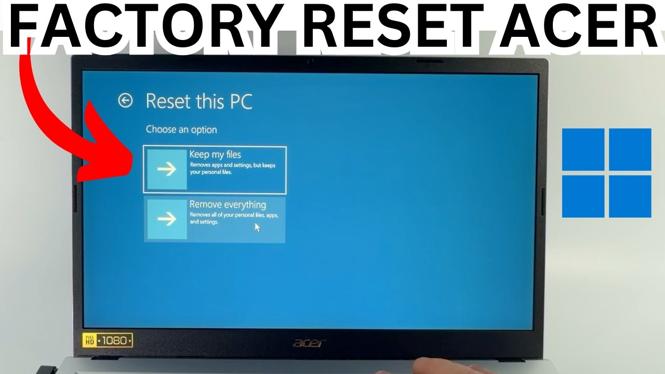
How to Factory Reset Acer PC or Laptop Without Password
Are you facing issues with your Acer PC or laptop and unable to access your system due to a forgotten password? If so, you’re in the right place. Factory resetting your device can restore it to its original state, giving you a fresh start. In this blog post, we will guide you through the steps to factory reset your Acer PC or laptop without needing the password. This process utilizes built-in recovery options, ensuring that you can regain control of your device without any additional software or technical expertise.
Video Tutorial
Why You Might Be Looking for This Tutorial
There are several reasons why you might want to factory reset your Acer device:
- Forgotten Password: One of the most common scenarios is forgetting your login password. In such cases, a factory reset is often the only way to regain access.
- System Performance Issues: Over time, your PC may become sluggish due to accumulated files and programs. A factory reset can help restore performance by removing unwanted clutter.
- Preparing for Sale: If you’re planning to sell your Acer device, performing a factory reset ensures that your personal data is wiped clean and the new owner receives a fresh system.
- Malware or Viruses: If your computer is infected with malware or viruses, a factory reset can remove these threats and restore normal function.
Steps to Factory Reset Your Acer PC or Laptop Without Password
Follow these straightforward steps to factory reset your Acer computer:
- Power On Your Device: Start your Acer PC or laptop.
- Access Recovery Mode: Immediately after turning it on, repeatedly press the F2 key (or Alt + F10) until you enter the recovery mode.
- Select Reset Options: Once in recovery mode, navigate to the Restore Factory Settings option using the arrow keys.
- Confirm the Reset: Follow the on-screen prompts to confirm the factory reset. Ensure you have backed up any important data, as this process will erase all files on your device.
- Wait for the Process to Complete: The device will take some time to reset. Once done, it will reboot automatically.
- Set Up Your Device: After the reboot, follow the initial setup process to configure your Acer device as new.
By following these steps, you can successfully factory reset your Acer PC or laptop without a password. This method is efficient and doesn’t require any special tools or software. Remember to back up your data before proceeding with the reset, as it will erase everything from your device.
For additional assistance or troubleshooting, refer to the video tutorial above, where we provide a visual walkthrough of the entire process. Good luck with your reset!
More Windows 11 Tips & Tutorials:
 Subscribe Now! 🙂

Discover more from Gauging Gadgets
Subscribe to get the latest posts sent to your email.