How to Disable Windows 11 Game Bar
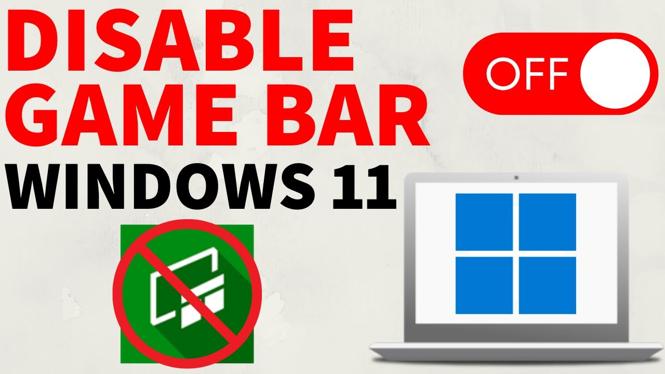
Windows 11 comes with an integrated Xbox Game Bar that allows users to capture gameplay, take screenshots, and access game-related features seamlessly. However, many users find this feature more disruptive than helpful, especially if they do not utilize it for gaming purposes. If you find the Game Bar opening unexpectedly or find it cluttering your gaming or working experience, this guide will show you how to effectively disable it. In this tutorial, we will walk you through the steps necessary to remove the Xbox Game Bar from your Windows 11 PC or laptop permanently.
Video Tutorial
Why You Might Be Looking for This Tutorial
There are several reasons you may want to disable the Windows 11 Game Bar:
- Performance Issues: The Game Bar can consume system resources and may affect the performance of other applications, particularly on lower-end devices.
- Disruptive Interruptions: Accidentally opening the Game Bar during gameplay or while working can be frustrating, especially if it interrupts your focus or workflow.
- Personal Preference: Many users simply do not require the features provided by the Game Bar and prefer a cleaner, less cluttered desktop experience.
- Enhancing Productivity: For users who do not play games, removing unnecessary features can streamline the operating system’s usability.
Steps to Disable Windows 11 Game Bar
Follow these easy steps to disable the Game Bar on your Windows 11 device:
- Open Settings: Click on the Start menu and select the Settings gear icon or press Windows + I on your keyboard.
- Navigate to Gaming: In the Settings window, scroll down and select “Gaming” from the sidebar.
- Select Xbox Game Bar: Under the Gaming section, click on “Xbox Game Bar”.
- Disable the Game Bar: Toggle off the switch for “Enable Xbox Game Bar for things like recording game clips, chatting with friends, and receiving game invites.”
- Verify Background Recording Settings: You can also click on “Captures” in the Gaming section and disable “Record in the background while I’m playing a game” and any other related settings.
- Close Settings: Once you have made the changes, you can close the Settings window. The Game Bar will now be disabled.
By following these steps, you can ensure that the Xbox Game Bar will no longer interfere with your user experience on Windows 11.
If you have any questions or need further assistance while disabling the Game Bar, feel free to reach out for support. Enjoy a smoother and uninterrupted experience on your Windows 11 device!
More Windows 11 Tips & Tutorials:
 Subscribe Now! 🙂

Discover more from Gauging Gadgets
Subscribe to get the latest posts sent to your email.