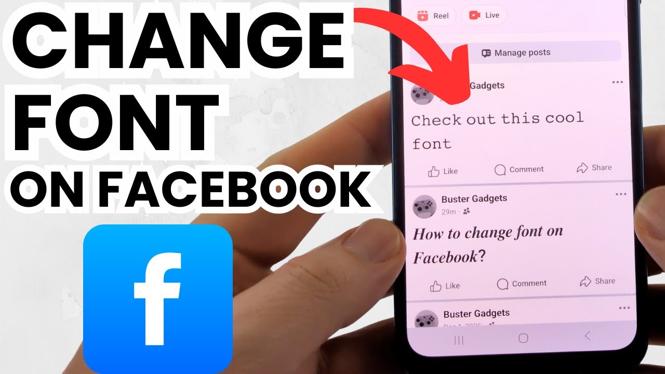
How to Change Font on Facebook Post Text
In the age of social media, creating engaging and aesthetically pleasing posts is essential for capturing attention. Many users seek ways to enhance their Facebook updates with unique fonts that reflect their personality and style. If you’re looking to stand out in your friends’ feeds or just want your posts to reflect your individuality, learning how to change the font on your Facebook post text is a great way to achieve that. This blog post will guide you through simple steps to customize your Facebook text using your iPhone, Android, or Samsung device.
Video Tutorial
Why You Might Be Looking for This Tutorial
With millions of users on Facebook, the competition for attention is fierce. You may be looking for this tutorial because:
- You want to make your posts more visually appealing.
- You are tired of using the default font and want something fresh.
- You want to attract more engagement and interaction on your posts.
- You’re preparing for a special announcement or event and want to add a personal touch.
- You’re interested in expressing your creativity through your social media updates.
Steps to Change Font on Facebook Post Text
Changing the font on your Facebook post text is both easy and straightforward. Follow these steps to add a unique flair to your posts:
Step 1: Open the Facebook App
Launch the Facebook app on your iPhone, Android, or Samsung device. Ensure you’re logged into your account.
Step 2: Start a New Post
Tap on the “What’s on your mind?” section at the top of your news feed to create a new post.
Step 3: Access the Font Options
In the text input section, you won’t find direct font options in the app itself, but you can use third-party text generators or websites to customize your text. Search for “font generator” in your browser and select one that appeals to you.
Step 4: Generate Your Text
Type your desired message in the font generator. You can experiment with different styles until you find the one that fits your post best. Simply copy the text once you’re satisfied.
Step 5: Paste the Customized Text
Go back to the Facebook app and paste the customized text into your new post.
Step 6: Make It Personal
Add any additional elements like images, tags, or location to enhance your post further.
Step 7: Publish Your Post
Once you’re happy with your post, tap the “Post” button. Your friends will now see your uniquely styled text on their feeds!
By following these simple steps, you can transform ordinary Facebook posts into eye-catching updates that reflect your style and creativity. Happy posting!
More Facebook Tips & Tutorials:
 Subscribe Now! 🙂

Discover more from Gauging Gadgets
Subscribe to get the latest posts sent to your email.