How to Change Clock Time to 24 Hour Military on Samsung Phone
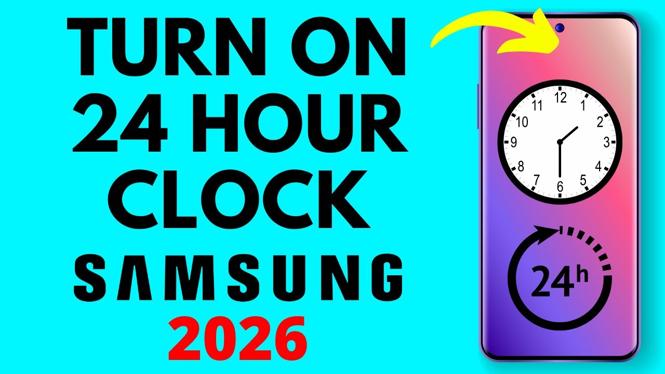
If you find yourself needing to adjust the time format on your Samsung phone to military time, you’re not alone. Many users prefer using the 24-hour clock for various reasons, such as clarity in scheduling, reducing confusion in international communications, or simply personal preference. This guide will walk you through the simple steps needed to change the time format on your Samsung Galaxy device.
Video Tutorial
Why You Might Be Looking for This Tutorial
Switching to military time can be beneficial for a number of reasons:
- Improved Clarity: Military time eliminates ambiguity by removing the need for AM and PM distinctions, making it straightforward to read.
- International Standards: If you frequently deal with international teams or travel, adapting to a 24-hour clock can enhance communication.
- Personal Preference: Some individuals simply feel more comfortable using military time and find it easier for organizing daily schedules.
Steps to Change Clock Time to 24 Hour Military on Samsung Phone
- Open Settings: Start by tapping on the ‘Settings’ icon on your Samsung device.
- Navigate to General Management: Scroll down and select ‘General Management’.
- Select Date and Time: Tap on ‘Date and time’ to access these settings.
- Change Time Format: Look for the ’24-hour format’ toggle. Turn it on to switch to military time.
- Confirm Changes: Once activated, the time on your device will change to the 24-hour format.
Following these steps will ensure your Samsung phone displays time in the military format, making it easier for you to manage your time effectively. Enjoy your newly organized time display!
More Samsung Phone Tips & Tutorials:
 Subscribe Now! 🙂
1
/
7


How to Turn OFF WiFi on Samsung Phone
How to Turn OFF Bluetooth on Samsung Phone
How to Force Restart Any Samsung Phone
How to Turn Off TalkBack on Samsung Phone - 2026
How to Restart Samsung Phone Without Power Button
How to Remove Lock Screen on Samsung Phone - Turn Off Passcode
How to Turn Off Samsung Phone Without Button
How to Enable & Disable Cookies on Samsung Internet - 2026
How To Empty Trash On Samsung Phone
How to Turn ON Automatic Brightness on Samsung
How to Turn OFF Automatic Brightness on Samsung
How to Fix Display Black and White on Samsung Phone
How to Stop Power Button Opening Gemini on Samsung Phone
Best FREE VPN for Samsung Phone - 2026
How to Change Clock Time to 24 Hour Military on Samsung Phone
1
/
7
Discover more from Gauging Gadgets
Subscribe to get the latest posts sent to your email.