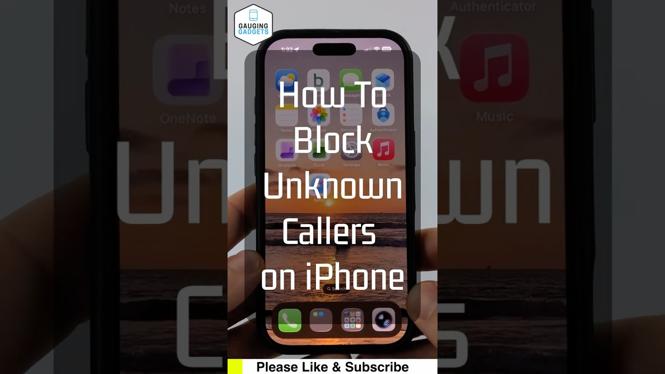
How to Block Unknown Callers on iPhone
Unwanted calls can be a significant nuisance, filling your phone with interruptions and distractions. If you find yourself constantly bombarded by spam calls or calls from unknown numbers, you are not alone. Many iPhone users are seeking a solution to regain control over their incoming calls. Fortunately, the iPhone offers built-in features to help block unknown callers and silence those pesky spam calls without relying on third-party applications. In this blog post, we will guide you through the steps to enable these features.
Video Tutorial
Why You Might Be Looking for This Tutorial
There are several reasons you may want to block unknown callers on your iPhone. First, you may be frustrated by the number of robocalls or telemarketing calls you receive daily. These unwanted calls not only disrupt your day but can also lead to potential scams. Second, if you are a privacy-conscious individual, allowing unknown callers can make you feel vulnerable. Lastly, having the ability to retain focus and reduce distractions from your phone calls can improve your productivity, especially if you’re busy with work or personal matters. Learning how to silence unknown callers is a practical solution that can lead to a more peaceful phone experience.
Steps to Block Unknown Callers on iPhone
Step 1: Open Settings
Start by unlocking your iPhone and navigating to the Settings app. The Settings icon looks like a gear and is usually found on your home screen.
Step 2: Phone Settings
Once you are in the Settings menu, scroll down and select Phone. This section contains all the settings related to calls and your phone experience.
Step 3: Silence Unknown Callers
In the Phone settings, you will see an option titled Silence Unknown Callers. Tap on this option to access the feature.
Step 4: Enable the Feature
Switch the toggle to the ON position. When this feature is enabled, any call from a number that is not in your contacts, recent calls, or Siri Suggestions will be sent directly to voicemail. You will still receive notifications of missed calls, but you will avoid unwanted interruptions.
Step 5: Additional Spam Call Blocking
For further protection against spam calls, consider enabling Call Blocking & Identification features. You can add specific numbers to your blocked contacts list or use apps that provide spam call protection to filter potential spam or robocalls.
Conclusion
Blocking unknown callers on your iPhone is a simple yet effective way to reduce unwanted disturbances and protect your privacy. By enabling the built-in ‘Silence Unknown Callers’ feature, you can enjoy greater peace of mind knowing that unsolicited calls will not interrupt your day. Follow the steps outlined in this tutorial to take control of your phone experience today.
More iPhone Tutorials:
 Subscribe Now! 🙂

Discover more from Gauging Gadgets
Subscribe to get the latest posts sent to your email.