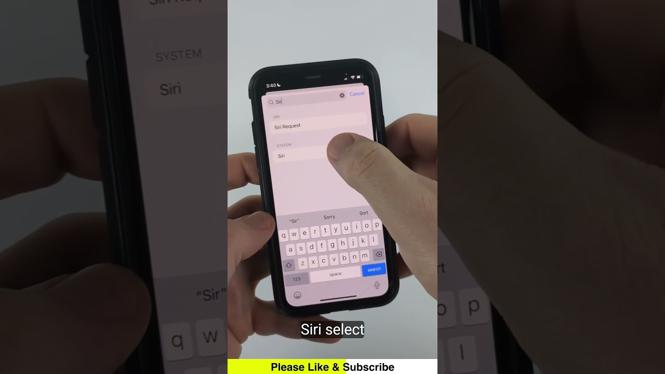
Change Siri’s Name to Anything You Want! (iPhone Hack)
Are you tired of Siri always responding to her default name? Do you want to personalize your iPhone assistant and have some fun with your friends? This tutorial will guide you through the steps to change Siri’s trigger name using a clever hack with Apple Shortcuts and Voice Control. You can make Siri respond to any name you choose, like “Jarvis,” “Alfred,” or even something unique that reflects your personality. Read on to learn how to customize Siri and add a personal touch to your iPhone experience.
Video Tutorial
Why You Might Be Looking for This Tutorial
In today’s digital age, personalization is key. Many users love to customize their devices to reflect their individual tastes. Changing Siri’s name can make your iPhone feel more unique and can serve as a conversation starter with your friends. Additionally, this hack can enhance the usability of Siri for those who want a more engaging and tailored interaction with their personal assistant. Whether you’re a tech enthusiast or just looking to have some fun, this tutorial is perfect for you.
Steps to Change Siri’s Name
- Open Settings: Start by opening the Settings app on your iPhone.
- Access Siri & Search: Scroll down and tap on “Siri & Search.”
- Enable Voice Control: Ensure that “Voice Control” is turned on. This option allows you to use voice commands to control your device.
- Create a New Shortcut: Open the Shortcuts app, tap the “+” button to create a new shortcut.
- Record Your Custom Command: Choose “Add Action,” then select “App” and find Siri. Type in the name you’d like Siri to respond to, such as “Jarvis.”
- Set Up Trigger: After creating the command, set your shortcut’s trigger to be activated by your custom name. Make sure it’s a name you will remember!
- Test Your Shortcut: Exit the Shortcuts app and test out your custom command via Voice Control to ensure Siri responds correctly.
That’s it! You have successfully changed Siri’s name to anything you want. Enjoy the surprise on your friends’ faces when they hear you call Siri by an entirely different name!
For further assistance or troubleshooting, feel free to leave your questions in the comments section below.
More iPhone Tips & Tutorials:
 Subscribe Now! 🙂

Discover more from Gauging Gadgets
Subscribe to get the latest posts sent to your email.