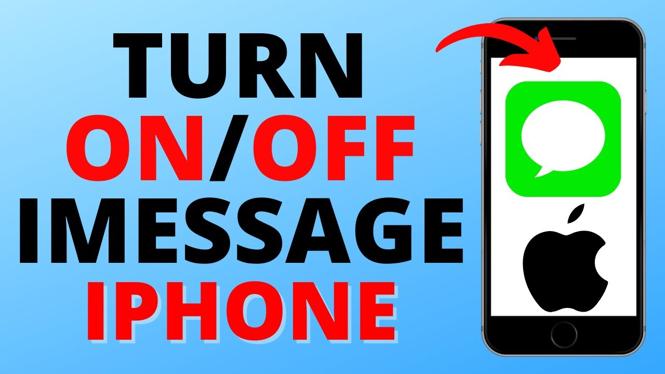
How to turn on or off iMessage on an iPhone? In this tutorial, I show you how to easily enable or disable iMessage on your iPhone. This means you can turn off iMessage if you’re switching to Android or text messages are not working when sent to Android phones. You can also turn on iMessage to send messages on your iPhone, iPad, and Macbook.
Turn On or Off iMessage on iPhone (Video Tutorial):
Follow the steps below to turn on or off iMessage:
- Open the settings on your iPhone.
- Once in the settings scroll down and select Messages.
- Toggle on or off iMessages.
- You can now close the iPhone settings.
More iPhone Tips & Tutorials:
 Subscribe Now! 🙂
1
/
25


How to Add App Back to Home Screen on iPhone
How to Turn Off Screen Distance on iPhone - Fix iPhone Too Close
How to Change Clock Icon on iPhone Home Screen
How to Stop Text Messages on iPad
How to Send Text in Custom Fonts on iPhone
How to Check Deleted Messages on iPhone
How to Set Custom Charging Sound On iPhone
How to Disable Apple Intelligence AI on iPhone
How to Remove Lock Screen on iPhone - Turn Off Passcode
How to Turn Off iPhone Ask To Join Wifi Network
How to Rotate a Picture on iPhone - Flip Photo on iPhone
How to Get Rid of Little Circle on iPhone Screen
How to Force Restart Any iPhone
How to Turn Off Green Dot On iPhone
How to Enable & Disable Cookies on iPhone - 2026
1
/
25
Discover more from Gauging Gadgets
Subscribe to get the latest posts sent to your email.