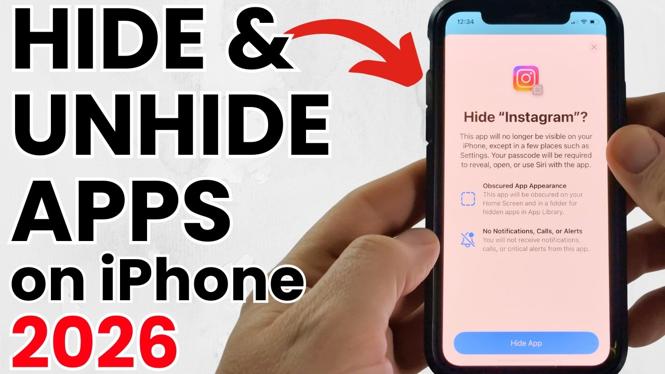
How to Hide & Unhide Apps on iPhone
Are you looking for a way to keep your iPhone organized and maintain your privacy? Hiding apps on your iPhone can help you declutter your home screen and app library, making it easier to find the apps you want without distractions. This tutorial is designed to show you simple steps to hide and unhide apps using built-in iPhone features, without the need for any third-party tools.
Video Tutorial
Why You Might Be Looking for This Tutorial
There are several reasons why a person may want to hide apps on their iPhone:
- Organization: Keeping your home screen tidy can make your iPhone experience more enjoyable.
- Privacy: Hiding certain apps, such as social media or messaging applications, can help maintain your personal space.
- Simplicity: If you have apps you seldom use, hiding them can reduce clutter and help you focus on the apps you need.
Steps to Hide Apps on iPhone
- Find the App: Locate the app you want to hide on your home screen.
- Remove from Home Screen: Press and hold the app icon until a menu appears. Select “Remove App”, then choose “Remove from Home Screen.” This action will hide the app from your home screen while still keeping it accessible in your app library.
- Hide in App Library: You can also hide the app from the app library by going to Settings > Home Screen and deselecting ‘Show App Library.’
Steps to Unhide Apps on iPhone
- Access App Library: Swipe left on your home screen until you reach the App Library.
- Find the App: Use the search bar at the top to locate the app you previously hid.
- Add Back to Home Screen: Press and hold the app icon, then select “Add to Home Screen.” Your app will reappear on your home screen.
Conclusion
By following these steps, you can easily hide and unhide apps on your iPhone, making it more organized and private. This simple tutorial empowers you to manage your apps effectively, ensuring that your device only showcases what you want it to. For a visual walkthrough, make sure to watch the video tutorial above!
More iPhone Tutorials:
 Subscribe Now! 🙂

Discover more from Gauging Gadgets
Subscribe to get the latest posts sent to your email.