How to Find Apple ID on iPhone
Finding your Apple ID on your iPhone is a necessary task for many users, especially as Apple products become increasingly central to daily life. Whether you’re managing apps, purchasing from the App Store, or securing your account, knowing how to locate your Apple ID is essential. This tutorial will guide you through the simple steps to find your Apple ID on any iPhone model, including the latest iPhone 17, without needing any technical skills.
Video Tutorial
Why You Might Be Looking for This Tutorial
There are several reasons why you might want to find your Apple ID:
- Account Management: Whether you want to update your payment information or change your password, having access to your Apple ID is crucial for account management.
- Device Security: Knowing your Apple ID can help you secure your devices, especially if they are lost or stolen.
- App Store Access: To download apps, you’ll need your Apple ID. If you forget it, you might be unable to access the App Store.
- Apple Services: Use your Apple ID to sign in to various Apple services like iCloud, iMessage, and FaceTime easily.
Steps to Find Your Apple ID on iPhone
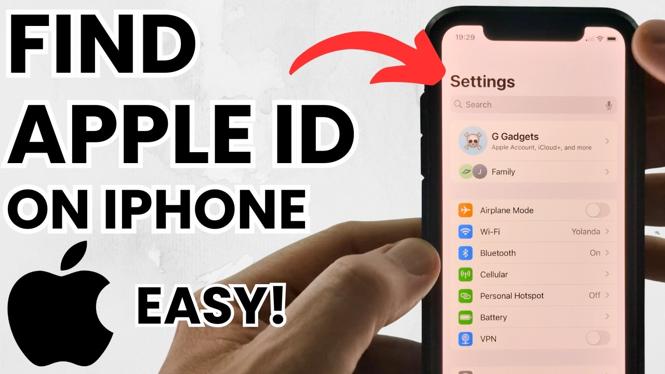
- Open Settings: Start by unlocking your iPhone and tapping on the ‘Settings’ app from your home screen.
- Tap Your Name: At the top of the Settings menu, you’ll see your name. Tap on it to access your Apple ID settings.
- View Apple ID: Your Apple ID will be displayed at the top of the screen, usually in the format of an email address. This is the Apple ID you are looking for.
- Alternatively, Access via iCloud: If you want to confirm your Apple ID, scroll down and tap on ‘iCloud’. Your Apple ID will also be listed here.
- Forgotten Apple ID: If you can’t locate your Apple ID, tap on ‘Forgot Apple ID or Password?’ on the sign-in screen. Follow the instructions to recover your Apple ID.
In conclusion, locating your Apple ID on your iPhone is a simple process that can unlock a myriad of features and enhance your security. By following the steps outlined above, you can easily find your Apple ID and manage it effectively, ensuring that your Apple experience remains smooth and secure.
More iPhone Tutorials:
 Subscribe Now! 🙂

Discover more from Gauging Gadgets
Subscribe to get the latest posts sent to your email.