How to Put Xbox Controller in Bluetooth Pairing Mode
Are you looking to enhance your gaming experience by connecting your Xbox controller to various devices via Bluetooth? Whether you want to use your controller with your PC, phone, or tablet, this guide will help you learn how to put your Xbox controller in Bluetooth pairing mode. By following the steps outlined below, you can easily connect your controller without the need for any additional adapters or accessories.
Video Tutorial
Why You Might Be Looking for This Tutorial
With the increasing use of mobile gaming and the flexibility that comes with wireless technology, many gamers are seeking ways to connect their Xbox controllers to a variety of devices. By enabling Bluetooth pairing mode on your Xbox controller, you can effortlessly switch between gaming on your console, computer, and mobile devices. This tutorial is particularly useful for those wanting to streamline their setup and eliminate tangled wires. Additionally, understanding this process will save you time and enhance your overall gaming experience.
Steps to Put Your Xbox Controller in Bluetooth Pairing Mode
- Power On Your Xbox Controller:
Press and hold the power button on your Xbox controller until the Xbox logo lights up. This indicates that the controller is powered on.
- Enter Pairing Mode:
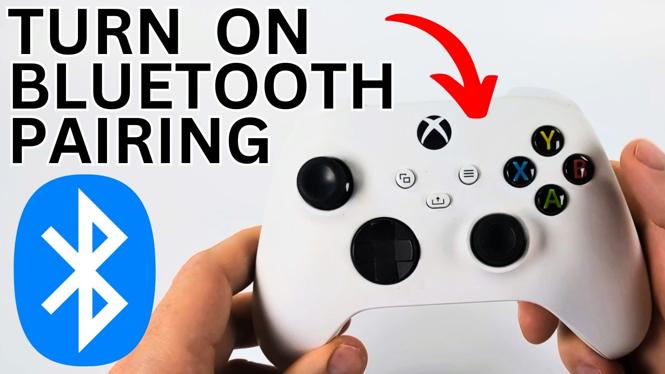
Press and hold the ‘Pair’ button located on the top of the controller. The Xbox logo will start flashing, indicating that the controller is now in pairing mode.
- Access Bluetooth Settings on Your Device:
On your PC, phone, or tablet, navigate to the Bluetooth settings. Make sure Bluetooth is turned on.
- Connect to the Controller:
In the list of available devices, look for the Xbox controller. Click on it to initiate the pairing process.
- Confirm the Connection:
Once connected, the Xbox logo on your controller will stop flashing and remain lit, showing that the controller is paired successfully with your device.
Final Thoughts
Now that you know how to put your Xbox controller in Bluetooth pairing mode, you can enjoy a more flexible gaming experience across multiple devices. With just a few simple steps, you can connect your controller without the hassle of wires or additional equipment. Feel free to refer back to this guide anytime you need to re-establish a connection.
More Xbox Series X Tips & Tutorials:
 Subscribe Now! 🙂

Discover more from Gauging Gadgets
Subscribe to get the latest posts sent to your email.