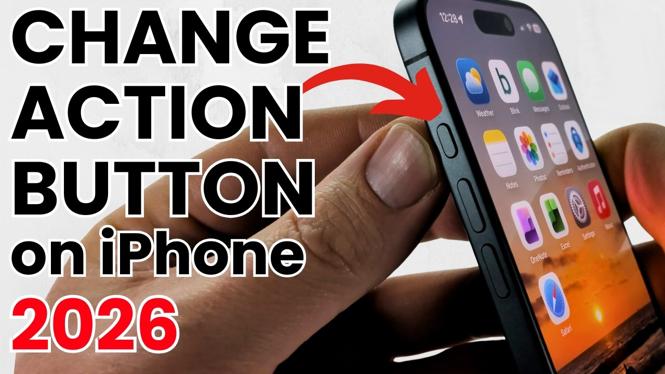
How to Change Action Button on iPhone
The iPhone has become an essential part of our daily lives, offering a multitude of features and functionalities. One of the standout features in recent models is the customizable Action Button. Whether you want to use it for quick access to your favorite apps or to enable accessibility features, understanding how to change the Action Button can greatly enhance your iPhone experience. This tutorial will guide you through the steps needed to personalize your Action Button, making your iPhone more efficient and tailored to your needs.
Video Tutorial
Why You Might Be Looking for This Tutorial
Many iPhone users are unaware of the full potential of the Action Button. By customizing it, you can streamline your daily tasks, ensuring that your most frequently used functions are just a click away. For example, if you often use your camera to capture moments, assigning the Action Button to launch it can save you time and make your interaction with your device more fluid. This capability is especially valuable for individuals with accessibility needs, allowing them to assign functions that help facilitate easier usage. In a world where personalization is key, mastering the Action Button can vastly improve your iPhone experience.
Steps to Change the Action Button on iPhone
- Access Settings: Start by opening the Settings app on your iPhone.
- Navigate to Action Button: Scroll down and find the section labeled “Action Button.” Click on it to enter the customization menu.
- Select Your Preference: You will see a list of available functions. These may include shortcuts for the camera, flashlight, silent mode, and various accessibility features.
- Assign a Function: Tap on the desired function to assign it to the Action Button. You will be provided with options to customize even further, such as creating shortcuts or integrating specific accessibility settings.
- Test the Action Button: Once you have made your selection, press the Action Button to test its new function. Ensure that it works as intended and meets your needs.
- Adjust as Necessary: If you decide you want to change the functionality again, simply repeat the above steps.
By following these steps, you can ensure that your iPhone’s Action Button is configured in a way that supports your lifestyle, making your device not just an accessory, but a personalized tool that enhances your daily activities.
More iPhone Tutorials:
 Subscribe Now! 🙂

Discover more from Gauging Gadgets
Subscribe to get the latest posts sent to your email.