How to Cancel Uber One Subscription in the Uber App
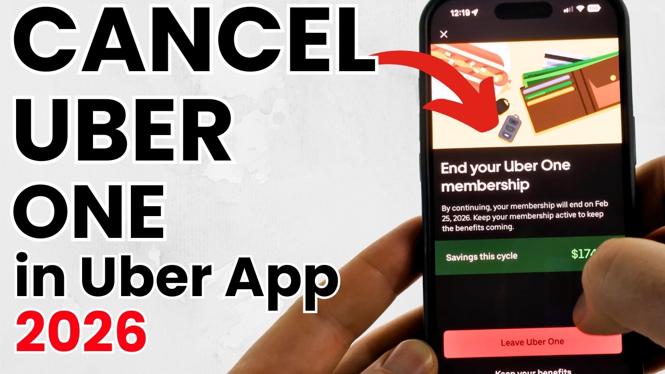
Are you looking to cancel your Uber One subscription? Perhaps you’ve found that you no longer use the services offered by Uber One, or maybe you’re looking to save some money. Whatever the reason, it’s important to know that canceling your subscription can be done quickly and easily directly through the Uber app on your mobile device. In this post, we will provide you with a clear step-by-step guide to help you unsubscribe from Uber One without any hassle.
Video Tutorial
Why You Might Be Looking for This Tutorial
There are several reasons you may be searching for instructions to cancel your Uber One subscription. Some common motivations include:
- You may not be utilizing the benefits of Uber One, making the membership feel unnecessary.
- You might be looking to cut back on expenses and canceling subscription services is a good place to start.
- Perhaps you’ve switched to a different service that better meets your needs.
- It’s also possible that you encountered issues with the Uber One service that led you to decide to cancel.
Steps to Cancel Your Uber One Subscription
Follow these simple steps to cancel your Uber One subscription within the Uber app:
- Open the Uber App: Launch the Uber app on your mobile device. Ensure you are logged into the account associated with your Uber One subscription.
- Access Your Account Settings: Tap on the menu icon, usually represented by three horizontal lines or your profile picture, located at the top-left or top-right corner of the screen.
- Select ‘Account’: From the menu, choose the ‘Account’ option to access your account settings.
- Navigate to ‘Uber One’: Scroll down to find the ‘Uber One’ section and select it to open your subscription details.
- Tap on ‘Manage Membership’: Here, you will see options related to your subscription. Tap on ‘Manage Membership’ to proceed.
- Choose ‘Cancel Subscription’: Follow the prompts to select ‘Cancel Subscription.’ The app will guide you through the steps needed to confirm your cancellation.
- Confirm Cancellation: Review any information regarding the cancellation and confirm your choice to ensure that your subscription is successfully cancelled.
Upon completion of these steps, your Uber One subscription will be cancelled. Remember that while you can cancel anytime, it’s always a good idea to check if there are any remaining benefits or discounts before your membership officially ends.
If you have any issues or if the cancellation does not process correctly, you may want to contact Uber support for assistance. However, the process described here should cover everything you need to unsubscribe easily and quickly.
Conclusion
Cancelling your Uber One subscription is a straightforward process that can be done directly through the Uber app on your smartphone. By following the steps above, you can manage your subscription and avoid any unwanted charges with just a few taps. Be sure to reassess your subscription needs regularly and enjoy a budget-friendly lifestyle.
More Cancel Subscriptions Tips:
 Subscribe Now! 🙂

Discover more from Gauging Gadgets
Subscribe to get the latest posts sent to your email.