How to Remove Pages from PDF File FREE
Managing PDF documents can often be challenging, especially when it comes to editing. Many users find themselves in need of removing unwanted pages from their PDF files for various reasons, such as streamlining information, removing unnecessary content, or preparing documents for sharing. The good news is that there are free methods to accomplish this task without the need for costly software like Adobe Acrobat. In this blog post, we will guide you through the process of removing pages from a PDF file using free online tools that are accessible from any device, including computers, iPhones, Samsung, or Android devices.
Video Tutorial
Why You Might Be Looking for This Tutorial
There are several reasons why you may be looking to remove pages from a PDF file:
- You want to reduce the file size for easier sharing.
- You need to exclude confidential or irrelevant information before sending documents to others.
- You are preparing a presentation or report and need to tailor the content.
- You want to make edits to a document received from someone else but don’t require the entire document.
Steps to Remove Pages from a PDF File for Free
Follow these simple steps to remove pages from your PDF file using free online tools:
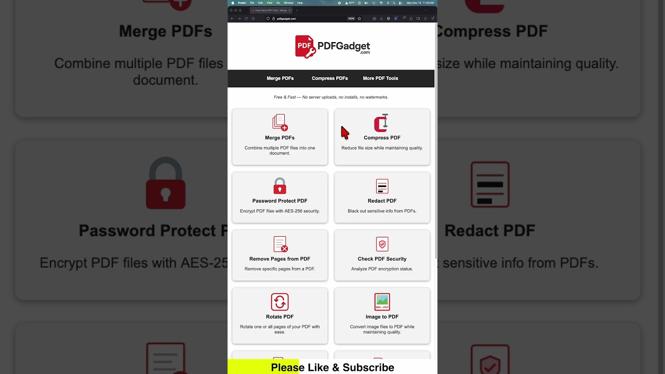
- Access a Free Online PDF Tool: Open your web browser and navigate to a reliable free PDF editing website. Popular options are Smallpdf, ILovePDF, or PDF2Go.
- Upload Your PDF File: Click on the appropriate option to upload your PDF file. This usually involves selecting the file from your device or dragging and dropping it into the designated area.
- Select Pages to Remove: Once your PDF is uploaded, you will generally see a preview of the pages. Choose the pages you want to remove by clicking on them or using the provided tools to select multiple pages.
- Delete the Selected Pages: After making your selection, look for a button labeled “Remove” or “Delete.” Click it to remove the chosen pages from your document.
- Download Your Edited PDF: Once the pages are removed, the site will typically generate a new version of your PDF. Follow the prompts to download the updated file to your device.
By following these steps, you can easily remove pages from your PDF files without spending any money. This makes your documents more relevant and tailored to your needs. Happy editing!
More PDF Tools & Tutorials:
 Subscribe Now! 🙂

Discover more from Gauging Gadgets
Subscribe to get the latest posts sent to your email.