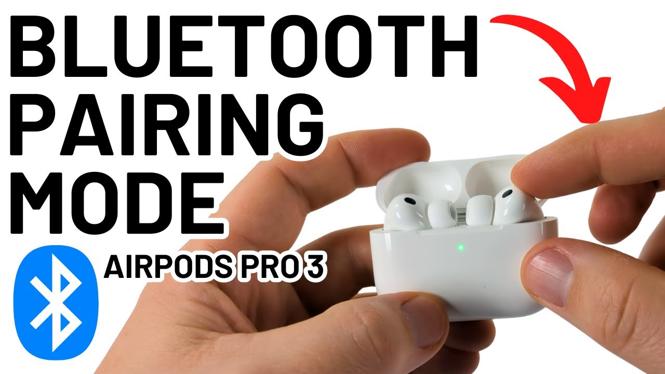
How to Put AirPods Pro 3 in Bluetooth Pairing Mode
If you recently purchased the AirPods Pro 3 or simply want to connect them to a new device, you may find yourself needing to activate the Bluetooth pairing mode. This essential step allows you to link your AirPods to a variety of devices such as iPhones, Android phones, Windows PCs, and more. Being able to switch seamlessly between different devices enhances your listening experience and ensures you can enjoy your AirPods wherever you go. In this article, we’ll walk you through the straightforward steps to get your AirPods Pro 3 into pairing mode.
Video Tutorial
For a visual guide, check out the video tutorial below that clearly demonstrates how to put your AirPods Pro 3 in Bluetooth pairing mode.
Why You Might Be Looking for This Tutorial
Whether you’re a new user or an experienced one, there are several reasons why you might want to learn how to put your AirPods Pro 3 in pairing mode. Perhaps you’ve acquired a new smartphone or tablet, and you need to establish a connection with your AirPods. Or maybe you want to share your audio with a friend by connecting your AirPods to their device. Additionally, if you’ve reset your AirPods or experienced connectivity issues, knowing how to enable pairing mode will help you reconnect. This tutorial aims to simplify that process for you.
Steps to Put AirPods Pro 3 in Bluetooth Pairing Mode
- Ensure AirPods Are Charged: Before beginning, make sure your AirPods Pro 3 are charged. Place them in the charging case and ensure the case has sufficient battery.
- Open the Charging Case: With your AirPods inside, open the lid of the charging case without removing the AirPods.
- Locate the Pairing Button: On the back of the charging case, find the small circular button. This is the pairing button.
- Activate Pairing Mode: Press and hold the pairing button for about three seconds. You’ll see the status light on the front of the case flash white, indicating that your AirPods are in pairing mode.
- Connect to Your Device: On your device (iPhone, Android, etc.), go to the Bluetooth settings and select “AirPods Pro 3” from the list of available devices to establish the connection.
Troubleshooting Tips
If you are having trouble putting your AirPods Pro 3 into pairing mode, here are a few tips:
- Ensure Bluetooth is enabled on your device.
- Make sure your AirPods are adequately charged.
- If they still won’t pair, try resetting your AirPods by holding the pairing button until the status light flashes amber, then white.
Conclusion
Putting your AirPods Pro 3 in Bluetooth pairing mode is a simple process that can significantly enhance your listening experience across various devices. By following the steps outlined above, you can easily connect your AirPods and enjoy seamless audio playback. For further assistance, don’t hesitate to refer back to the video tutorial or consult Apple’s support resources.
More AirPods Tips & Tutorials:
 Subscribe Now! 🙂

Discover more from Gauging Gadgets
Subscribe to get the latest posts sent to your email.