How to Put PS4 Controller in Bluetooth Pairing Mode
Connecting your PS4 controller to devices via Bluetooth expands its usability beyond just your PlayStation console. Whether you want to use it with a PC, smartphone, or tablet, knowing how to put your DualShock 4 controller into Bluetooth pairing mode is essential. This guide will walk you through the necessary steps to pair your PS4 controller wirelessly, allowing for a more versatile gaming experience.
Why You Might Be Looking for This Tutorial
There are several reasons you might want to connect your PS4 controller via Bluetooth:
- Wireless Convenience: Eliminating the need for cables provides freedom of movement while gaming.
- Cross-Platform Compatibility: Pairing your controller with various devices enables you to enjoy games on different platforms.
- Enhanced Gameplay: Some games may perform better with a controller rather than touch controls on mobile devices.
Steps to Put Your PS4 Controller in Bluetooth Pairing Mode
- Turn Off the Controller: If your controller is currently connected to your PS4 or another device, disconnect it by turning it off. You can do this by pressing and holding the PS button until it turns off.
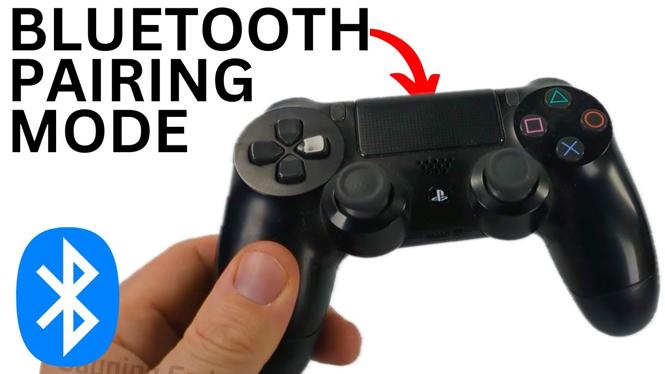
- Enter Pairing Mode: To put your PS4 controller into Bluetooth pairing mode, press and hold the Share button and the PS button simultaneously. Keep holding them until the light bar starts to flash, indicating that the controller is ready to pair.
- Access Bluetooth Settings on Your Device: On the device you want to connect the controller to (e.g., PC, smartphone), go to the Bluetooth settings and enable Bluetooth if it’s not already on.
- Pair the Controller: Look for “Wireless Controller” or “DualShock 4” in the list of available devices. Select it to pair the controller with your device.
- Confirmation: Once paired, the light bar on the controller will stop flashing and remain lit, confirming a successful connection.
Video Tutorial
By following these straightforward steps, you can effortlessly put your PS4 controller in Bluetooth pairing mode and connect it to your preferred devices for an enhanced gaming experience.
More PS4 Tips & Tutorials:
 Subscribe Now! 🙂
1
/
2


How to Uninstall Games on PS5
How to Turn Off Beep on PS5 - Disable PlayStation 5 Startup Beep Sound
How to Put PS5 Controller in Bluetooth Pairing Mode
How to Connect PS5 Controller to Windows 11 PC & Laptop
How to Connect PS5 Controller to Samsung Phone with Bluetooth
How to Connect PS5 Controller to iPad with Bluetooth
How to Link PS5 Account to Epic Games Account
How To Enable 120 FPS on PS5
How to Download Call Of Duty Warzone on PS5
How to Enable Console Sharing and Offline Play on PS5 - Easy
How to Turn Off Controller Vibration on Fortnite
How to Connect PS5 Controller to Android with Bluetooth
How to Activate Primary Account On PS5 - Playstation 5 Primary Account Activation - Easy
How to Connect PS5 Controller to iPhone with Bluetooth
How To Fix Controller Drift PS5 - Fix PS5 Controller Analog Stick Drift - Easy No Tools
1
/
2
Discover more from Gauging Gadgets
Subscribe to get the latest posts sent to your email.