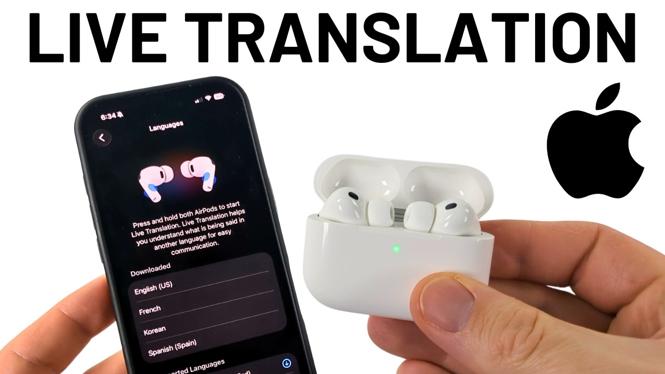
How to Use Live Translation With AirPods Pro 3
In today’s globalized world, communication across language barriers is more important than ever. Fortunately, with the advent of technology like the AirPods Pro 3, language translation has become easier and more accessible. This blog post will guide you through the process of using Live Translation with your AirPods Pro 3, allowing you to have real-time conversations in different languages effortlessly.
Video Tutorial
Why You Might Be Looking for This Tutorial
Whether you are traveling internationally, conducting business with overseas partners, or simply want to communicate with friends who speak a different language, the ability to understand and converse in multiple languages is invaluable. Live Translation with AirPods Pro 3 enhances this experience by providing instant translations directly in your ears, enabling fluid conversations without fumbling with your phone or translation apps. This functionality is particularly useful for travelers and professionals alike, making interactions easier and more efficient.
How to Enable Live Translation with AirPods Pro 3
Step 1: Ensure Compatibility
Before getting started, ensure that you have AirPods Pro 3, AirPods Pro 2, or AirPods 4 paired with an iPhone that supports Apple Intelligence. This feature requires iOS 14 or later, so check your device’s software version and update if necessary.
Step 2: Connect Your AirPods
Make sure your AirPods are connected to your iPhone. Open the Bluetooth settings on your phone, locate your AirPods, and ensure that they are connected.
Step 3: Enable Live Translation
To enable Live Translation, go to the Settings app on your iPhone, scroll down and tap on “Accessibility.” From there, select “Spoken Language” and toggle on “Live Translation.” This will activate the feature for your AirPods.
Step 4: Download Supported Languages
To download the languages you want to use for live translation, go to the “Languages” section within the Accessibility settings. Choose the languages you anticipate needing, and download them to ensure smooth performance.
Step 5: Start a Live Translation Session
Now that you’ve enabled Live Translation and downloaded the necessary languages, you can start using the feature. Open a voice or video call app, and speak in your preferred language. Your voice will be translated in real time, allowing the listener to hear the translation through your AirPods.
Conclusion
Using Live Translation with your AirPods Pro 3 can significantly enhance your communication abilities, breaking down language barriers in real-time. By following these steps, you’ll be able to engage in conversations with much more confidence. If you have any questions while setting this up, feel free to leave a comment below, and we’ll be happy to assist you.
More AirPods Tips & Tutorials:
 Subscribe Now! 🙂

Discover more from Gauging Gadgets
Subscribe to get the latest posts sent to your email.