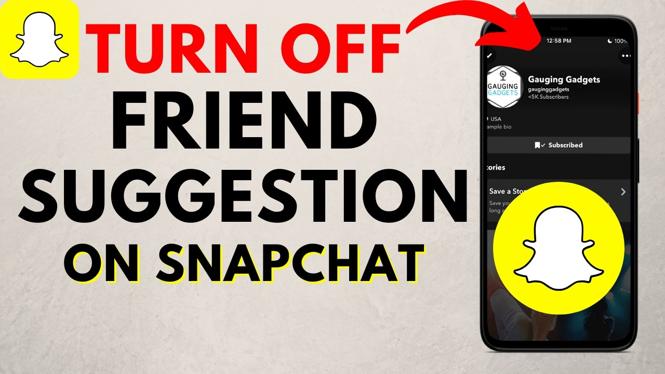
How to Turn OFF Snapchat Friend Suggestion Notifications
If you’re tired of receiving constant notifications for friend suggestions on Snapchat, you’re not alone. Many users find the “Quick Add” feature intrusive and overwhelming, leading to a cluttered experience on the app. Fortunately, turning off these notifications is a straightforward process, and this guide will walk you through it step by step for iPhone, Android, and Samsung devices.
Why You Might Be Looking for This Tutorial
There are several reasons why you might want to disable Snapchat’s friend suggestion notifications:
- Enhanced User Experience: By turning off these notifications, you can enjoy a cleaner and more focused Snapchat experience without constant distractions.
- Control Over Connections: Not everyone wants to be suggested to friends they don’t know, or vice versa. Disabling these notifications allows you to manage your social interactions better.
- Less Clutter: If you receive a lot of notifications, it can make finding important messages or updates challenging. Turning off friend suggestions reduces notification overload.
Steps to Turn OFF Snapchat Friend Suggestion Notifications
Follow these steps to disable friend suggestion notifications on your device:
For iPhone Users:
- Open the Snapchat app on your iPhone.
- Tap on your profile icon in the upper left corner.
- Tap on the gear icon (Settings) in the upper right corner.
- Scroll down to the ‘Who Can…’ section and tap on ‘See Me In Quick Add.’
- Select ‘My Friends’ or ‘Only Me’ to prevent friend suggestions from appearing.
- To turn off notifications, go back to the main Settings page and tap on ‘Notifications.’ Disable notifications for ‘Friend Suggestions.’
For Android Users:
- Open Snapchat on your Android device.
- Tap on your profile avatar in the top left corner.
- Tap on the gear icon (Settings) in the upper right corner.
- Find the ‘Who Can…’ section and select ‘See Me In Quick Add.’
- Choose ‘My Friends’ or ‘Only Me’ to limit friend suggestions.
- Go back to Settings, select ‘Notifications,’ and turn off notifications for ‘Friend Suggestions.’
For Samsung Users:
- Launch the Snapchat app on your Samsung device.
- Tap your profile icon in the upper left corner.
- Tap on the gear icon to access Settings.
- In ‘Who Can…’ options, select ‘See Me In Quick Add.’
- Limit your visibility by selecting ‘My Friends’ or ‘Only Me.’
- Navigate to ‘Notifications’ in Settings and disable ‘Friend Suggestions’ notifications.
Video Tutorial
By following these steps, you can effectively turn off friend suggestion notifications on Snapchat, enhancing your overall experience. No more unsolicited friend suggestions or annoying alerts—just a cleaner, more enjoyable Snapchat environment. If you have any questions or need further assistance, feel free to leave a comment below!
More Snapchat Tips & Tutorials:
 Subscribe Now! 🙂

Discover more from Gauging Gadgets
Subscribe to get the latest posts sent to your email.