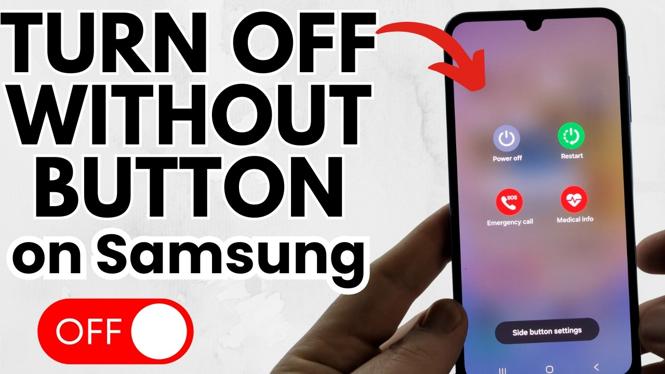
How to Turn Off Samsung Phone Without Button
In today’s world, smartphones are essential tools for communication, productivity, and entertainment. However, what happens when your Samsung phone’s power button becomes unresponsive or stops working? This common issue can leave many users searching for alternative ways to manage their devices. Fortunately, there are several effective methods to power off or restart your Samsung Galaxy device without relying on the physical buttons. In this blog post, we’ll explore these methods to help you regain control of your phone and ensure you can easily shut it down or restart as needed.
Video Tutorial
Why You Might Be Looking for This Tutorial
If you are reading this, chances are that your Samsung phone’s power button is broken or unresponsive, causing a significant inconvenience in your daily routine. You might be in a situation where you need to restart your phone for troubleshooting, or perhaps you just want to power it down without the hassle of trying to fix the button. This tutorial will guide you through various alternatives designed specifically for those scenarios, ensuring that you can keep using your device seamlessly.
Methods to Turn Off Samsung Phone Without Button
1. Using the Notification Shade
Samsung devices come equipped with quick access features in the notification shade. You can use these options to turn off your phone:
- Swipe down from the top of your screen to access the notification shade.
- Look for the ‘Power’ icon, which may appear as a circular button with a line through it.
- Tap on the ‘Power’ icon and then select ‘Power Off’ from the available options.
2. Accessing the Settings Menu
If you can’t find the power icon in your notification shade, you can still turn off your device through the settings:
- Open the Settings app on your Samsung device.
- Scroll down and select ‘General Management.’
- Tap on ‘Reset’ and then choose ‘Power Off.’ Follow the prompts to confirm.
3. Using Accessibility Features
Samsung offers accessibility options that can help when physical buttons are not an option:
- Go to the Settings app and select ‘Accessibility.’
- Find ‘Interaction and dexterity’ and tap to enter.
- Enable the ‘Assistant Menu’ option. This will create a floating menu on your screen.
- Tap the Assistant Menu, then select ‘Power Off’ from the list of options.
4. Using the Bixby Voice Command
If your Samsung device has Bixby voice assistant, you can simply use voice commands:
- Activate Bixby by saying “Hi Bixby” or by pressing the Bixby button.
- Say “Turn off my phone” and confirm when prompted.
Conclusion
Though a malfunctioning power button can be frustrating, there are multiple ways to turn off your Samsung phone without it. Whether you prefer using the notification shade, the settings menu, accessibility features, or voice commands, you can easily manage your device. By following the methods outlined in this blog post, you can ensure that your Samsung Galaxy device remains functional even in the absence of a working power button.
More Samsung Phone Tips & Tutorials:
 Subscribe Now! 🙂

Discover more from Gauging Gadgets
Subscribe to get the latest posts sent to your email.