How to Turn OFF Liquid Glass on iPhone
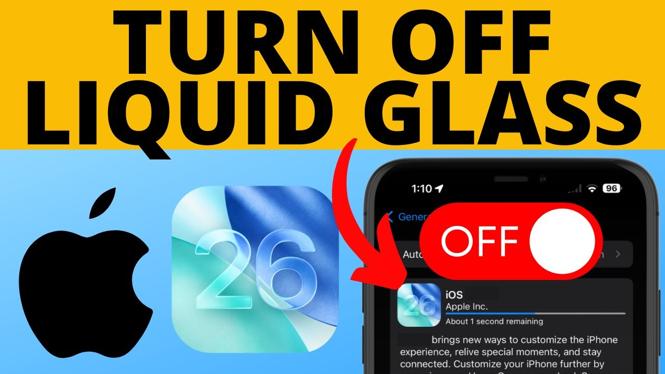
If you’ve recently updated your iPhone to iOS 26 and found the new Liquid Glass mode less appealing than expected, you’re not alone. Many users appreciate the aesthetic changes brought by iOS updates but prefer to revert to the standard display settings for a cleaner and more functional look. In this guide, we’ll walk you through the steps to turn off Liquid Glass mode, ensuring you regain the display style that you’re accustomed to. This tutorial is perfect for those who want a less reflective screen and improved readability on their devices.
Video Tutorial
Why You Might Be Looking for This Tutorial
There are several reasons why you might want to disable Liquid Glass mode on your iPhone:
- Improved Readability: The glossy finish can make certain content harder to read, especially in bright conditions.
- Reduced Reflections: Turning off Liquid Glass helps in minimizing glare, making it easier to use your phone outdoors or in bright-light settings.
- Personal Preference: You may simply prefer the classic iOS look over the newer glossy effects.
- Battery Life: Some users report that turning off certain display features can slightly improve battery performance, although this may vary.
Steps to Turn OFF Liquid Glass on iPhone
Follow these simple steps to disable Liquid Glass mode on your iPhone:
- Open Settings: Locate and tap on the Settings app from your home screen.
- Go to Display & Brightness: Scroll down and select “Display & Brightness.”
- Find Liquid Glass Option: Look for the “Liquid Glass” option; this may be found under advanced display settings.
- Disable Liquid Glass: Toggle the switch next to “Liquid Glass” to turn it off. You should see immediate changes to your display.
- Test Your Display: Take a moment to observe the changes and ensure your display appears as you prefer it.
By following these straightforward steps, you will successfully turn off the Liquid Glass effect and restore the traditional iOS display. Enjoy a more readable and reflection-free screen experience!
More iPhone Tips & Tutorials:
 Subscribe Now! 🙂

Discover more from Gauging Gadgets
Subscribe to get the latest posts sent to your email.