How to Turn OFF Autoplay on YouTube
YouTube is a platform that offers a vast library of videos, making it easy to get lost in content for hours. However, the autoplay feature can sometimes become overwhelming, leading to unintended viewing of videos you aren’t really interested in. Learning how to turn off autoplay on YouTube is essential for users who prefer to have better control over their viewing experience. In this tutorial, we will walk you through the process of disabling autoplay on the YouTube mobile app for iPhone, Android, and Samsung devices.
Video Tutorial
Why You Might Be Looking for This Tutorial
As YouTube continues to evolve, its features can sometimes affect the way we interact with content. Users may be looking to disable autoplay for several reasons:
- Control Over Viewing Experience: Autoplay can lead to videos playing automatically, which might not be what you want at any given moment.
- Data Usage Concerns: Continuous streaming can use a considerable amount of mobile data, especially if you’re on a limited plan.
- Focus on Specific Content: Having videos autoplay can distract you from your intended choice of content.
- Children’s Usage: Parents may want to turn off autoplay to prevent children from watching unmonitored content.
Steps to Turn OFF Autoplay on YouTube
Follow these simple steps to disable autoplay on the YouTube mobile app:
- Open the YouTube App: Launch the YouTube app on your mobile device (iPhone or Android).
- Sign in to Your Account: If you’re not already signed in, do so using your Google account.
- Navigate to a Video: Select any video to start watching.
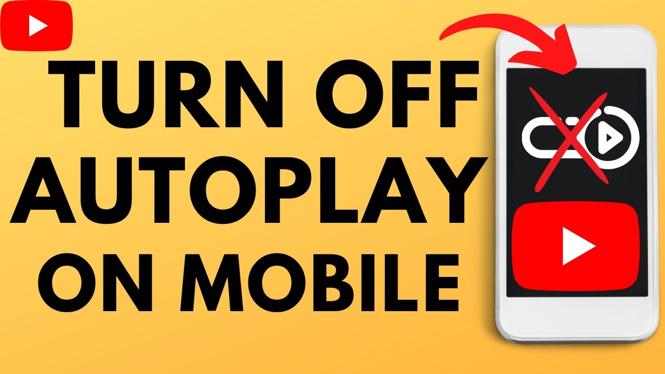
- Find the Autoplay Switch: Below the video player, you will see the autoplay toggle switch. It is usually located to the right of the video description.
- Disable Autoplay: Tap the toggle to turn it off. The switch will change color to indicate that autoplay is disabled.
- Confirm Changes: Continue watching your chosen video without interruptions from autoplay.
By following these steps, you can take control of your YouTube viewing experience and enjoy the content that truly interests you without the distraction of automatically playing videos.
Conclusion
Turning off autoplay on YouTube is a simple yet effective way to enhance your user experience, regain control over your video selections, and save on data usage. Now that you know how to do it, you can enjoy watching content on your terms. If you have any questions or need further assistance, feel free to leave a comment below!
More YouTube Tips & Tutorials:
 Subscribe Now! 🙂

Discover more from Gauging Gadgets
Subscribe to get the latest posts sent to your email.