How to Split PDF into Separate PDF Files
In today’s digital age, managing PDF documents efficiently is crucial for both personal and professional use. Whether you are preparing a report, sharing information, or organizing your documents, there may be times when you need to split a large PDF file into smaller, more manageable pieces. Splitting PDFs can help you create focused documents, share specific sections, or simply reduce file sizes for easier handling. Fortunately, this process is easier than you might think, and it can be done without any software installation or cost.
Video Tutorial
Why You Might Be Looking for This Tutorial
There are various reasons why someone might want to split a PDF file. Perhaps you’re a student looking to compile only specific pages from a textbook, or maybe you’re a professional needing to extract certain sections of a report for distribution. Additionally, splitting PDFs can make it easier to share documents over email or cloud storage, as smaller files tend to have lower upload and download times. This tutorial is designed to guide you through the process of splitting PDF files using a free online tool called PDFGadget, which is user-friendly and compatible with all devices.
Steps to Split PDF into Separate PDF Files
- Access PDFGadget: Visit the PDFGadget website using your preferred web browser on any device—PC, Mac, iPhone, Android, or Chromebook.
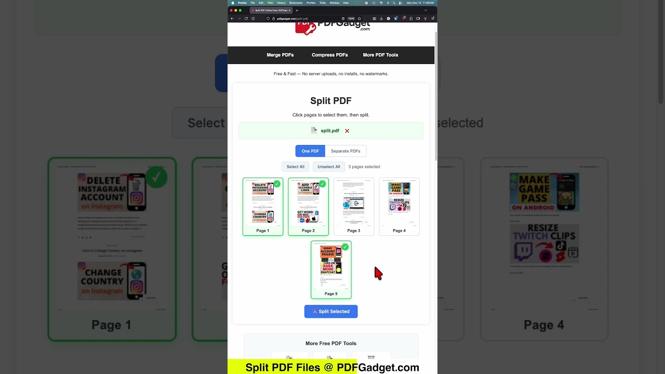
- Upload Your PDF: Locate the PDF file you wish to split. You can drag and drop the file into the designated area on the PDFGadget website.
- Choose Your Splitting Option: Decide whether you want to split the PDF by pages (each page becomes a separate PDF file) or extract specific pages.
- Configure the Split Settings: If extracting specific pages, enter the page numbers you wish to keep in the split document. For example, to extract pages 1 to 3, enter “1-3”.
- Start the Splitting Process: Click the “Split PDF” button to begin the process. PDFGadget will process your document online.
- Download Your Files: Once the splitting is complete, you will be provided with links to download the newly created PDF files. Click on each link to save the individual files to your device.
Conclusion
Splitting PDF files doesn’t have to be a daunting task. With the help of PDFGadget, you can easily break down large documents into smaller, more manageable parts without the need for any special software. Whether for academic, professional, or personal use, mastering this skill can enhance your document management capabilities and streamline your workflow. Follow these simple steps, and you’ll be splitting PDFs like a pro in no time!
More PDF Tools & Tutorials:
 Subscribe Now! 🙂

Discover more from Gauging Gadgets
Subscribe to get the latest posts sent to your email.