How to Slow Down a Video on Samsung
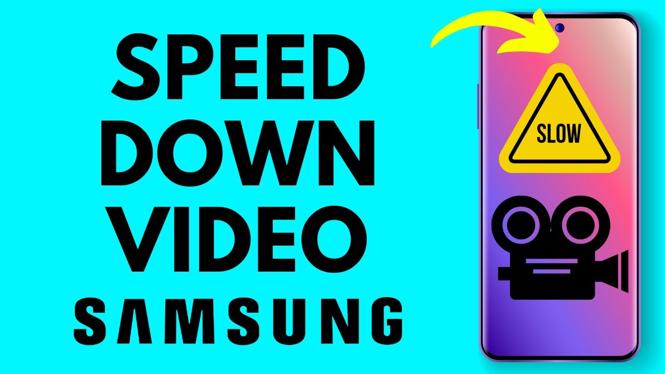
If you are looking to enhance your videos by adding a slow motion effect, you’re in the right place. Whether you want to capture a special moment in slow-mo or make a creative video for social media, knowing how to slow down a video on your Samsung phone can be a game-changer. Fortunately, with the built-in Samsung Gallery editor, you don’t need any extra apps to achieve this effect. You can make adjustments directly from your phone with just a few simple steps.
Video Tutorial
Why You Might Be Looking for This Tutorial
Many users are often on the lookout for quick and easy methods to edit videos, especially on their smartphones. Samsung devices come equipped with powerful features that allow users to create professional-looking videos without the need for complicated software. You may want to slow down a video for various reasons, such as:
- Highlighting Details: Sometimes, slowing down a video can help emphasize key moments, making them more impactful.
- Creating Artistic Effects: Slow motion can add a creative flair to your videos, making them visually appealing.
- Improved Focus: It allows viewers to focus on specific actions or expressions that are otherwise missed in real-time.
Steps to Slow Down a Video on Your Samsung Phone
Follow these simple steps to slow down a video using the Samsung Gallery editor:
- Open the Gallery App: Locate and open the Gallery app on your Samsung phone.
- Select Your Video: Browse through your video collection and select the video you wish to edit.
- Tap on Edit: Once the video is open, look for the edit option (usually represented by a pencil icon) and tap on it.
- Choose the Speed Option: Within the editing interface, find and select the speed adjustment tool, which allows you to change the playback speed.
- Adjust the Speed: Slide the speed bar to the left to slow down your video. Typically, you can go to half speed or slower, depending on your preference.
- Preview Your Changes: Make sure to preview your video to see how the slow-motion effect looks. This can help you decide if you’d like to make further adjustments.
- Save Your Video: Once satisfied with the changes, tap on the save option to apply and save your new slow-motion video.
By following these steps, you can easily slow down videos right from your Samsung phone. This feature allows you to enhance your content effortlessly, making it stand out on social media platforms or for personal memories. Happy editing!
More Samsung Phone Tips & Tutorials:
 Subscribe Now! 🙂

Discover more from Gauging Gadgets
Subscribe to get the latest posts sent to your email.