How to Put Xbox Controller in Bluetooth Pairing Mode
Learning how to put your Xbox controller in Bluetooth pairing mode can greatly enhance your gaming experience. Whether you want to connect your controller to a PC, laptop, mobile phone, or tablet, being able to use it wirelessly opens up new possibilities. This tutorial provides quick and easy steps to activate pairing mode on your Xbox controller, enabling you to enjoy gaming on multiple platforms, including Windows, Android, iPhone, and cloud gaming services.
Video Tutorial
Why You Might Be Looking for This Tutorial
Using your Xbox controller without wires can improve your comfort and freedom while gaming. If you’ve recently acquired a Bluetooth-compatible Xbox controller or want to connect your existing controller to a new device, you may run into challenges if you’re not familiar with the pairing process. This tutorial will save you time and frustration by providing straightforward instructions to get you connected quickly.
Steps to Put Your Xbox Controller in Bluetooth Pairing Mode
Step 1: Prepare Your Device
Before you start, make sure the device you want to connect your Xbox controller to has Bluetooth capabilities and that Bluetooth is enabled in the device’s settings.
Step 2: Turn On Your Xbox Controller
Press the Xbox button on your controller to turn it on. This button is located in the center of the controller and glows when the controller is powered on.
Step 3: Enter Pairing Mode
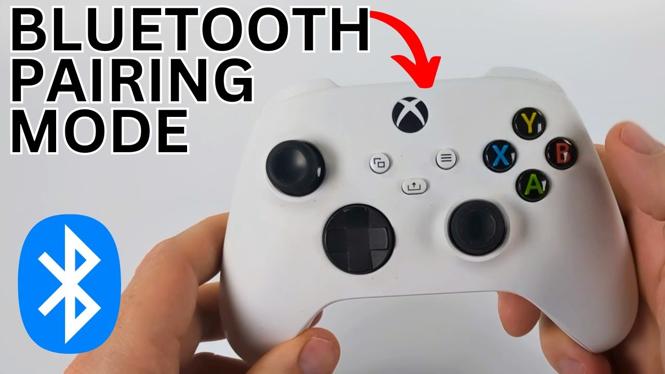
To activate Bluetooth pairing mode, press and hold the pairing button on the top of the controller. This button is located near the USB-C port. Hold the button until the Xbox button starts to flash. This indicates that your controller is now in pairing mode.
Step 4: Connect to Your Device
On your device, navigate to the Bluetooth settings page. Look for the option to add a new Bluetooth device. When you see ‘Xbox Wireless Controller’ in the list of available devices, select it to establish a connection.
Step 5: Confirm the Connection
Once connected, the Xbox button on your controller should stop flashing and remain lit. Your controller is now ready for use with your device.
Troubleshooting Tips
If you experience issues connecting your Xbox controller, make sure the controller is sufficiently charged, and try restarting both the controller and the device. Sometimes, clearing the Bluetooth cache of your device can also resolve connection issues.
Conclusion
Now that you’ve learned how to put your Xbox controller in Bluetooth pairing mode, you can enjoy gaming more flexibly across a range of devices. Use the simple steps outlined in this tutorial to connect your controller and elevate your gameplay experience.
More Xbox Series X Tips & Tutorials:
 Subscribe Now! 🙂

Discover more from Gauging Gadgets
Subscribe to get the latest posts sent to your email.