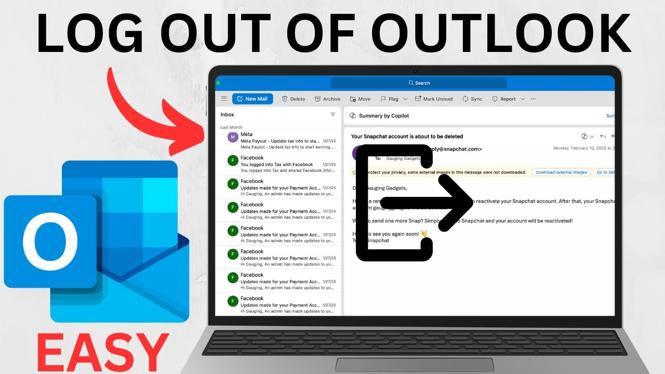
How to Log Out of Outlook on Laptop & PC
Logging out of Outlook is an essential skill for anyone using the platform on a laptop or PC. Whether you’re concerned about security, need to switch accounts, or just want to ensure your information is protected, knowing how to properly log out of Outlook can save you headaches down the line. In this comprehensive guide, we will walk you through the steps to log out of both the Outlook desktop application and the Outlook web version. You’ll learn everything you need to know to safeguard your emails and prevent unauthorized access to your account.
Video Tutorial
Why You Might Be Looking for This Tutorial
There are several reasons why understanding how to log out of Outlook is crucial:
- Security Concerns: If you’re using a shared computer or laptop, signing out of your Outlook account helps protect your sensitive emails and personal information from unauthorized access.
- Switching Accounts: Many users have multiple Outlook accounts for personal and professional use. Knowing how to log out allows for a smooth transition between accounts.
- Public Access: If you are in a public setting, logging out ensures that no one can access your emails after you leave the computer.
Steps to Log Out of Outlook Desktop App
- Open the Outlook desktop application on your laptop or PC.
- In the top-right corner, click on your profile picture or initials.
- Select the ‘Sign out’ option from the drop-down menu.
- Confirm any prompt that appears, and you will be successfully logged out.
Steps to Log Out of Outlook on the Web
- Navigate to the Outlook website and log in to your account.
- Click on your profile icon located at the top right corner of the page.
- Select the ‘Sign out’ option from the menu that appears.
- Ensure you close the browser window after signing out for added security.
Final Thoughts
Logging out of your Outlook account is a simple yet critical practice that enhances your security and privacy. By following these straightforward steps, you can ensure that your emails remain protected, particularly when using shared or public computers. Now that you know how to log out of both the desktop app and the web version, you can use Outlook with confidence.
More Outlook Tips & Tutorials:
 Subscribe Now! 🙂

Discover more from Gauging Gadgets
Subscribe to get the latest posts sent to your email.