How to FIX YouTube Recap 2025 Not Showing Up
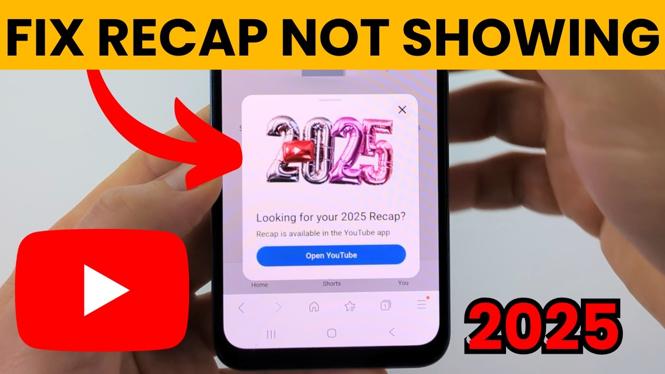
The YouTube Recap is a highly anticipated feature that allows users to reflect on their viewing habits over the past year. However, many users have encountered issues with the Recap not appearing for them. Whether you’re using an iPhone, Android phone, Samsung device, PC, laptop, Windows desktop, or even a smart TV, it can be frustrating to miss out on your personalized year-in-review stats. This blog post will guide you through several steps to troubleshoot and fix the YouTube Recap 2025 not showing up issue, ensuring you get the full experience of celebrating your favorite content from the year.
Video Tutorial
Why You Might Be Looking for This Tutorial
As a YouTube user, you may be eagerly anticipating your Recap, especially if you want to share it with friends or simply enjoy reflecting on your favorite videos and channels. However, if the Recap isn’t showing up, it can lead to disappointment and confusion. This blog post is for you if:
- You want to know how to resolve the issue of the missing YouTube Recap.
- You have tried refreshing your app or browser, but nothing seems to work.
- You are receiving notifications about your Recap but cannot access it.
- You want a step-by-step guide that covers multiple devices and platforms.
Steps to Fix YouTube Recap 2025 Not Showing Up
Follow these steps to troubleshoot and potentially resolve the issue of your missing YouTube Recap:
Step 1: Check Your YouTube Account Settings
Make sure you are logged into the correct YouTube account. Sometimes, users may have multiple accounts and mistakenly log into the one that doesn’t contain their viewing history.
Step 2: Update the YouTube App
If you’re using a mobile device, ensure that the YouTube app is updated to the latest version. Go to your device’s app store, check for updates, and install any available updates for YouTube.
Step 3: Clear Cache and Data
On mobile devices, clearing the cache and data of the YouTube app can help eliminate glitches. For Android devices, go to Settings > Apps > YouTube > Storage, and then tap on Clear Cache and Clear Data. For iOS devices, uninstalling and reinstalling the app achieves a similar result.
Step 4: Check Internet Connection
Ensure you have a stable internet connection. Sometimes, connectivity issues can prevent the Recap from loading properly.
Step 5: Use Another Device
If the Recap is still not showing up, try accessing your account on a different device or browser. This can help determine if the issue is device-specific or account-related.
Step 6: Wait and Try Again
Sometimes, the Recap might take a bit longer to appear due to server-side delays. If none of the steps have worked, wait a few hours or even a day and check again.
Conclusion
If you’ve followed all the above steps and are still having trouble accessing your YouTube Recap 2025, consider reaching out to YouTube support for further assistance. Remember, the Recap is designed to celebrate your year in content, and with a little patience and troubleshooting, you should be able to enjoy your personalized viewing statistics soon.
More YouTube Tips & Tutorials:
 Subscribe Now! 🙂

Discover more from Gauging Gadgets
Subscribe to get the latest posts sent to your email.