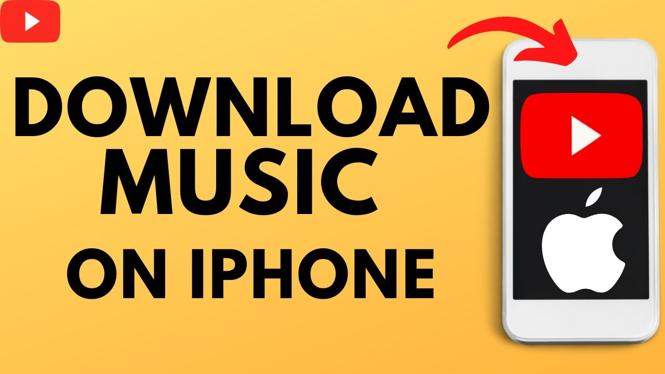
How to Download Music from YouTube on iPhone
In today’s digital age, music is more accessible than ever, and many people enjoy listening to their favorite tracks on-the-go. With the rise of platforms like YouTube, you may find yourself wanting to save your favorite songs for offline listening, especially when you’re not connected to Wi-Fi. This guide will show you how to download music from YouTube directly to your iPhone without the need for paid apps or subscriptions. Follow along to enjoy your favorite tunes anytime, anywhere.
Video Tutorial
Why You Might Be Looking for This Tutorial
There are several reasons why you might want to download music from YouTube to your iPhone:
- Offline Listening: You may want to have your favorite songs available when you are traveling or in areas with limited internet access.
- No Subscriptions Required: This method eliminates the need for paid services, making it accessible for everyone.
- Convenience: Having music saved on your device saves data and allows for seamless listening without buffering.
- Versatility: Downloaded music can be used in your own videos or for personal projects.
Steps to Download Music from YouTube on iPhone
Follow these steps to download music from YouTube directly to your iPhone:
- Choose Your Music: Start by opening the YouTube app or website and finding the music video you want to download.
- Copy the Video URL: Tap on the share button and select “Copy Link” to copy the URL of the video.
- Use a Conversion Website: Open Safari or your preferred web browser and visit a reliable YouTube to MP3 conversion website. Some popular options include YTMP3, Convert2MP3, or similar services.
- Paste the URL: On the conversion website, paste the copied YouTube link into the designated field.
- Select MP3 Format: Make sure to choose the MP3 format for audio only, then click on the convert button to start the process.
- Download the File: Once the conversion is complete, you will be given a download link. Click on that link to save the MP3 file directly to your iPhone.
- Save to Files or Music App: Depending on the website, you may have the option to save the file directly to your Files app or iTunes for easy access.
Conclusion
Downloading music from YouTube to your iPhone is a straightforward process that can be completed in just a few steps. By utilizing the methods outlined in this tutorial, you’ll be able to enjoy your favorite tracks offline without the need for costly subscriptions. Whether you’re preparing for a long flight or simply want to curate a playlist for your next adventure, having your music readily available on your device can enhance your listening experience.
More YouTube Tips & Tutorials:
 Subscribe Now! 🙂

Discover more from Gauging Gadgets
Subscribe to get the latest posts sent to your email.