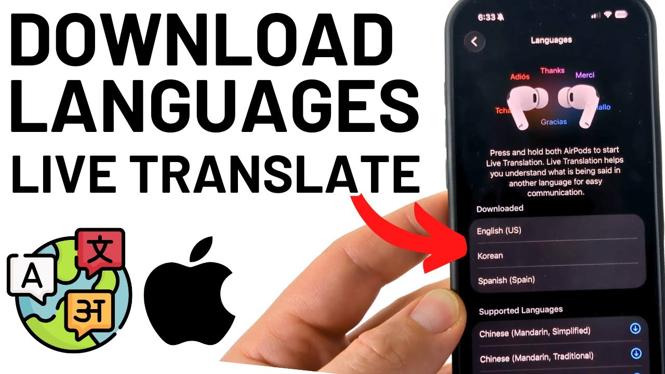
How to Download Languages for AirPods Live Translation
The ability to use live translation with AirPods has revolutionized how we communicate across language barriers. With this feature, you can immerse yourself in conversations in different languages while enjoying the seamless experience that AirPods offer. However, many users may be wondering how to set up and manage the languages available for this feature on their devices. In this article, we will guide you through the process of downloading languages for AirPods live translation, ensuring you can make the most out of this fantastic capability.
Video Tutorial
For a step-by-step visual guide on downloading languages for AirPods live translation, check out the video tutorial below.
Why You Might Be Looking for This Tutorial
As globalization brings people closer, the need for effective communication across languages is more critical than ever. With AirPods’ live translation feature, you can enhance your language learning and travel experiences. Users might be looking for this tutorial for several reasons:
- To fully utilize the live translation capabilities of their AirPods.
- To enhance understanding during conversations with speakers of other languages.
- To learn how to add or remove languages based on personal or travel needs.
- To make their AirPods a more multifunctional tool in various settings, such as travel, business, or academics.
Steps to Download Languages for AirPods Live Translation
- Ensure Your Devices are Updated: Before downloading languages, make sure your iPhone and AirPods are updated to the latest software version.
- Connect Your AirPods: Open your AirPods case and connect them to your iPhone. Ensure they are properly paired and connected.
- Open the Settings App: Navigate to the Settings app on your iPhone.
- Select Accessibility: Scroll down and tap on Accessibility. This is where you can adjust settings for various features, including hearing and environmental controls.
- Tap on Spoken Language: Under the Hearing section, locate and select Spoken Language.
- Select Language Settings: Here, you can choose the languages you wish to download for live translation. Options include Chinese, French, German, Italian, Japanese, Portuguese, Spanish, and Korean.
- Download the Languages: Tap on the language you want to add, and follow the prompts to download. Make sure you have a stable internet connection.
- Check Your Language List: After downloading, verify that the new languages appear in your language list.
- To Remove Languages: If you wish to delete any languages, simply return to the language settings and follow the prompts to remove them.
By following these steps, you can easily set up and manage languages for AirPods live translation, enhancing your ability to communicate across cultural boundaries. If you encounter any issues or have questions, feel free to leave a comment below or refer to the tutorial for additional guidance.
More AirPods Tips & Tutorials:
 Subscribe Now! 🙂

Discover more from Gauging Gadgets
Subscribe to get the latest posts sent to your email.