How To Deactivate or Delete Instagram Account
Are you feeling overwhelmed by social media and considering taking a break or removing your online presence completely? Whether you’re looking to take a temporary hiatus from Instagram or you’ve decided it’s time to delete your account permanently, this guide will walk you through the process step by step. Instagram provides built-in options to deactivate or delete your account, making it easy and straightforward without the need for any third-party applications or complicated methods.
Video Tutorial
Why You Might Be Looking for This Tutorial
There are various reasons why someone might want to deactivate or delete their Instagram account. You might feel that you’re spending too much time on social media, want to focus on other aspects of your life, or simply wish to protect your privacy. Deactivating your account allows you to take a break without permanently removing your content, while deleting your account completely wipes your data from Instagram’s servers. This tutorial addresses both scenarios, providing you with the necessary steps to make the choice that best suits your needs.
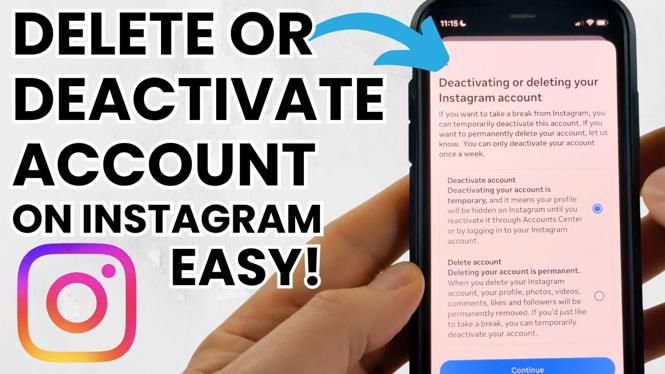
Steps to Temporarily Deactivate Your Instagram Account
- Open the Instagram app on your device or go to the Instagram website.
- Log in to your account.
- Go to your profile by tapping on your profile picture in the bottom right corner.
- Tap on ‘Edit Profile’.
- Scroll down and tap on ‘Temporarily disable my account’ in the bottom right corner.
- From the dropdown menu, select a reason for deactivation.
- Re-enter your password when prompted.
- Finally, tap on ‘Temporarily Disable Account’.
Steps to Permanently Delete Your Instagram Account
- Visit the Instagram ‘Delete Your Account’ page from a web browser (this option is not available in the app).
- Log in to your account if you are not already logged in.
- From the dropdown menu, select a reason for deletion.
- Re-enter your password when prompted.
- Click on ‘Permanently delete my account’.
Conclusion
Deciding to take a break or completely remove your Instagram account is a personal choice that reflects your current needs and priorities. Following this guide will help you navigate the process with ease, empowering you to take control of your social media experience. Remember that temporarily deactivating your account is reversible, while permanently deleting it is a final action, so choose wisely. If you have any questions or need further assistance, feel free to check the video tutorial for more detailed guidance.
More Instagram Tutorials:
 Subscribe Now! 🙂

Discover more from Gauging Gadgets
Subscribe to get the latest posts sent to your email.