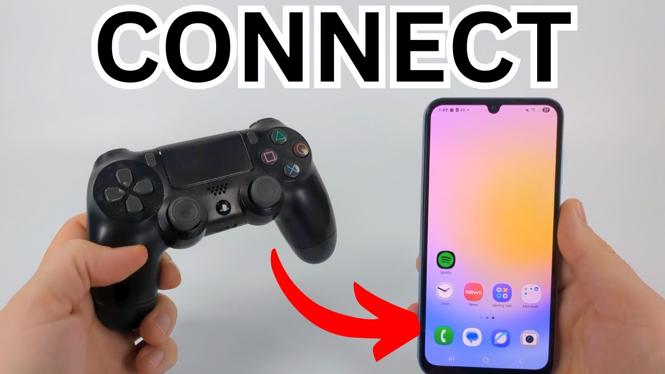
How to Connect PS4 Controller to Samsung Phone
If you’re a mobile gamer who prefers playing with a controller, connecting your PS4 controller to your Samsung phone could significantly enhance your gaming experience. Pairing a PlayStation 4 controller with your Samsung device allows you to enjoy smoother gameplay, better controls, and a console-like feel while playing your favorite mobile games. In this post, we’ll guide you through the steps to connect your PS4 controller to your Samsung phone seamlessly.
Video Tutorial
Why You Might Be Looking for This Tutorial
Many mobile gamers struggle with on-screen controls, which can often hinder gameplay. By connecting a PS4 controller, you can experience precision and comfort that touch controls cannot match. Whether you’re playing action, adventure, or racing games, having a physical controller at your fingertips can drastically improve your performance and enjoyment. Additionally, if you’re transitioning from console gaming to mobile gaming, this guide will help you maintain a familiar control scheme.
Steps to Connect PS4 Controller to Samsung Phone
Step 1: Prepare Your PS4 Controller
Start by ensuring that your PS4 controller is charged. To prepare it for pairing, press and hold the PlayStation button and the Share button simultaneously. You will notice the light bar on the controller begin to flash, indicating it is in pairing mode.
Step 2: Open Bluetooth Settings on Your Samsung Phone
Swipe down from the top of your Samsung phone to access the Quick Settings panel. Tap on the Bluetooth icon to open Bluetooth settings. Alternatively, go to Settings > Connections > Bluetooth.
Step 3: Pair the Controller
In Bluetooth settings, make sure Bluetooth is turned on. Your phone will start scanning for nearby devices. You should see your PS4 controller listed as “Wireless Controller.” Tap on it to pair the device with your phone.
Step 4: Confirm the Connection
Once the pairing is successful, the light bar on the controller will stop flashing and remain lit. You may also receive a confirmation message on your Samsung device. Your PS4 controller is now connected, and you can start using it to play games.
Step 5: Test the Connection
To ensure everything is working correctly, launch a game that supports controller input. You should be able to navigate menus and control characters using your PS4 controller without any issues.
Conclusion
Connecting your PS4 controller to a Samsung phone can elevate your mobile gaming experience to new heights. By following the steps outlined in this tutorial, you can enjoy enhanced gameplay and better control without the hassle of touch screens. Happy gaming!
More PS4 Tips & Tutorials:
 Subscribe Now! 🙂

Discover more from Gauging Gadgets
Subscribe to get the latest posts sent to your email.