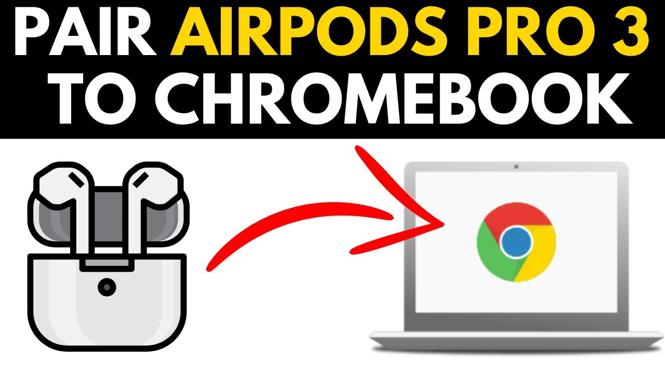
How to Connect AirPods Pro 3 to Chromebook
Are you struggling to connect your AirPods Pro 3 to your Chromebook? With the increasing number of people using Chromebooks for work, school, or leisure, knowing how to pair your favorite wireless earbuds can enhance your multimedia experience significantly. Whether you want to enjoy music, attend video calls, or use the built-in microphone, getting your AirPods Pro 3 connected to your Chromebook is essential. In this post, we will provide a detailed step-by-step tutorial on how to establish this connection easily.
Video Tutorial
Why You Might Be Looking for This Tutorial
Connecting AirPods Pro 3 to a Chromebook may not be as straightforward as it is with other Apple devices, and users often find themselves confused about the compatibility and pairing process. Some common reasons people seek this tutorial include:
- Desire to use high-quality audio while working on their Chromebook.
- Need for a reliable microphone for video conferencing or online classes.
- Interest in improving their overall multimedia experience while using a Chromebook.
- Seeking a solution to connect the AirPods with devices other than Apple products.
Steps to Connect AirPods Pro 3 to Chromebook
Follow these simple steps to connect your AirPods Pro 3 to your Chromebook:
- Open the Settings Menu: Click on the clock in the bottom-right corner of your screen to open the quick settings menu. Then, click on the gear icon to access the settings.
- Select Bluetooth: In the settings menu, find and select the “Bluetooth” option. Make sure Bluetooth is turned on.
- Prepare Your AirPods Pro 3: Open the lid of your AirPods Pro 3 case (do not remove the AirPods from the case yet). Press and hold the button on the back of the case until the light starts blinking white. This indicates that the AirPods are in pairing mode.
- Find Your AirPods in the Bluetooth Menu: On your Chromebook, under the Bluetooth section, you should see your AirPods Pro 3 listed as an available device. Click on the name to initiate pairing.
- Complete the Pairing Process: Once you click on your AirPods, you may see a prompt to confirm the connection. Accept any permissions or requests that appear.
- Test the Connection: After pairing, you can play some audio or make a test call to ensure your AirPods Pro 3 are functioning correctly with your Chromebook.
Now, you should be able to enjoy your favorite media with your AirPods Pro 3 on your Chromebook seamlessly! If you encounter any issues, refer back to the video tutorial for a visual guide, or feel free to leave your questions in the comments section.
More AirPods Tips & Tutorials:
 Subscribe Now! 🙂

Discover more from Gauging Gadgets
Subscribe to get the latest posts sent to your email.