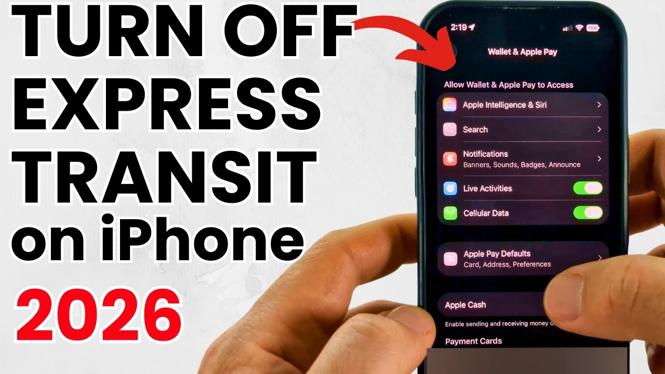
How to Turn Off Express Transit Mode on iPhone
In this tutorial, we will guide you through the simple steps to disable Express Transit Mode on your iPhone, ensuring the security of your personal payment information. This feature, while convenient, can expose your Visa cards to unauthorized access even when your iPhone is locked. By following this guide, you will learn how to turn off this setting on your iPhone 17, iPhone 16, and earlier models running iOS 26.
Video Tutorial
Why You Might Be Looking for This Tutorial
If you are concerned about the security implications of leaving Express Transit Mode enabled on your iPhone, you are not alone. Many users prefer to have control over their payment methods, especially after learning that this setting could potentially allow unauthorized transactions to occur, even on a locked device. Disabling this mode not only enhances your security but also gives you peace of mind regarding your financial information.
Steps to Turn Off Express Transit Mode on Your iPhone
- Open the Settings app on your iPhone.
- Scroll down and tap on Wallet & Apple Pay.
- Find the option labeled Express Transit Card.
- Select the card currently set for Express Transit and choose Remove or None.
- Exit the settings, and your changes should take effect immediately.
Conclusion
Disabling Express Transit Mode on your iPhone is a straightforward process that can significantly enhance your payment security. Following these steps ensures that your Visa cards and personal data are better protected. Regularly reviewing your settings is a good practice to maintain security and privacy in today’s digital world.
More iPhone Tutorials:
 Subscribe Now! 🙂

Discover more from Gauging Gadgets
Subscribe to get the latest posts sent to your email.