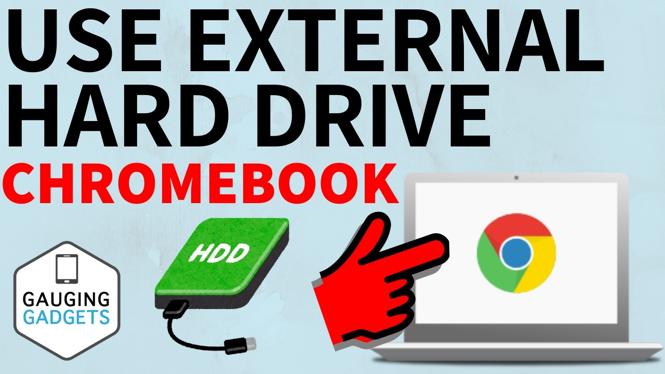
How to Use External Hard Drive on Chromebook
If you’re a Chromebook user, you may find yourself in need of additional storage for your files, photos, and videos. While Chromebooks are known for their lightweight and cloud-based approach, you can enhance your device’s capabilities by connecting an external hard drive. This not only allows you to expand your storage but also makes it easier to back up important data.
Video Tutorial
Why You Might Be Looking for This Tutorial
There are several reasons why you might be considering using an external hard drive with your Chromebook. First, if you’ve recently downloaded large files or taken many photos and videos, you might find your built-in storage is getting full. An external hard drive offers a convenient solution to store these files without having to constantly manage your storage or delete important items.
Second, connecting an external hard drive can also serve as a simple backup method. Data loss can happen at any time due to accidental deletion, hardware failure, or other unforeseen circumstances. Backing up your files will give you peace of mind and the ability to recover your important documents when needed. Lastly, transferring files between different devices, such as a Windows PC or Mac, is made easy with an external hard drive, allowing for seamless access across different operating systems.
Steps to Connect and Use an External Hard Drive on Your Chromebook
- Gather Your Equipment: You’ll need a USB external hard drive or SSD. Make sure your Chromebook has available USB ports.
- Connect the External Hard Drive: Plug your external hard drive into one of the USB ports on your Chromebook. Wait for a moment until Chromebook recognizes the device.
- Access Your Files: Open the “Files” app on your Chromebook. In the left sidebar, you should see your external hard drive listed under “Devices.” Click on it to access the files stored on the drive.
- Transfer Files: You can easily drag and drop files between your Chromebook and the external hard drive. To transfer files from the Chromebook to the drive, simply select the files, drag them over to your external drive, and drop them in the desired folder.
- Manage Your Storage: Use the “Files” app to organize your files on the external hard drive. You can create folders, rename files, and delete unwanted items directly from the Files interface.
- Safely Eject the Drive: When you are done using the external hard drive, make sure to safely eject it. Click on the eject icon next to the drive in the Files app before unplugging it to avoid data corruption.
Using an external hard drive with your Chromebook is a straightforward process that can greatly enhance your device’s storage capabilities. Whether you need to clear up space or ensure your data is backed up, following these simple steps will get you started in no time.
More Chromebook Tutorials:
 Subscribe Now! 🙂

Discover more from Gauging Gadgets
Subscribe to get the latest posts sent to your email.