How to Force Restart a Chromebook
In the digital age, Chromebooks have become increasingly popular due to their simplicity and efficiency. However, like any device, they can encounter issues that hinder performance. If your Chromebook is frozen, unresponsive, or just running slow, knowing how to force restart it can save you time and effort. This guide will walk you through the process of force restarting and hard resetting your Chromebook, regardless of its brand—be it HP, Lenovo, ASUS, Acer, Samsung, or Dell. You don’t need any technical expertise or third-party applications; simply follow these steps to resolve common Chromebook problems yourself.
Video Tutorial
Why You Might Be Looking for This Tutorial
There are several reasons why you might find yourself in need of this tutorial. Some common scenarios include:
- Your Chromebook has become unresponsive due to software glitches.
- You frequently experience slow performance and suspect a restart might help.
- You have tried traditional methods of restarting but to no avail.
- You want to learn how to troubleshoot problems on your own without technical support.
Understanding how to force restart your Chromebook can empower you to handle these situations effectively and minimize downtime.
Steps to Force Restart Your Chromebook
- Identify the issue: Before proceeding with a force restart, ensure that your Chromebook is indeed not responding. Try moving the cursor or pressing keys.
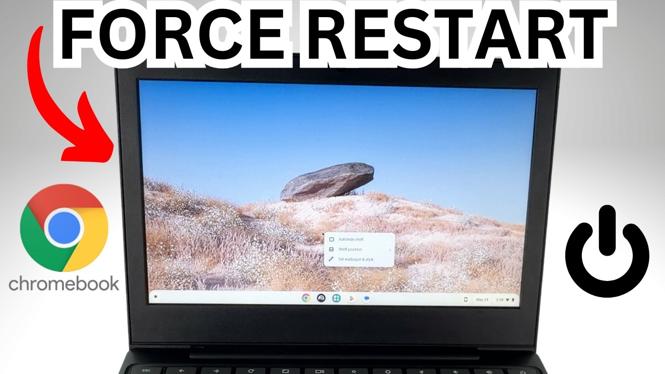
- Locate the Power button: Find the Power key, usually situated at the top-right corner of the keyboard.
- Perform a Force Restart: Press and hold the Power button for about 10 seconds. This should turn off your Chromebook completely.
- Wait a few seconds: Allow your device a moment to completely shut down.
- Power on your Chromebook: Press the Power button again to turn it back on. Wait for it to boot up fully.
- Check functionality: Once your Chromebook has restarted, check if the issue has been resolved.
Final Thoughts
Knowing how to force restart your Chromebook is a valuable skill that can help you troubleshoot common issues without stress. Whether you are a beginner or a seasoned user, this simple method can enhance your overall experience with the device. For further assistance, consider exploring additional resources or tutorials that address more complex problems.
More Chromebook Tutorials:
 Subscribe Now! 🙂

Discover more from Gauging Gadgets
Subscribe to get the latest posts sent to your email.