How to Keep Your Samsung Screen On While Charging
Keeping your Samsung screen on while charging can be useful in many situations, whether you’re using the device as a display, monitor, or reference screen. This functionality ensures that you can view important information without the inconvenience of your screen dimming or turning off. Fortunately, without any technical expertise or third-party apps, you can easily enable this feature on your Samsung Galaxy S25, S24, A series, Z Flip, Z Fold, and other Android devices in 2026. Follow along to learn how.
Video Tutorial
Why You Might Be Looking for This Tutorial
There are several reasons you may want to keep your Samsung screen on while charging:
- Increased Convenience: When your device is plugged in, a persistent display allows you to easily check notifications, watch videos, or follow instructions without interruption.
- Using as a Reference Screen: If you’re using your phone for recipe instructions, workout guides, or presentations, having the screen active makes it significantly easier to follow along.
- Minimizing Screen Timeout: This feature is especially useful during lengthy tasks or events where frequent interaction is necessary, keeping your display on and responsive.
Steps to Keep Your Samsung Screen On While Charging
- Open Device Settings: Start by navigating to the Settings app on your Samsung device.
- Select Display: Scroll down and tap on the ‘Display’ option to access screen settings.
- Locate Screen Timeout Settings: Find and select the ‘Screen timeout’ feature. This controls how long your display stays on without interaction.
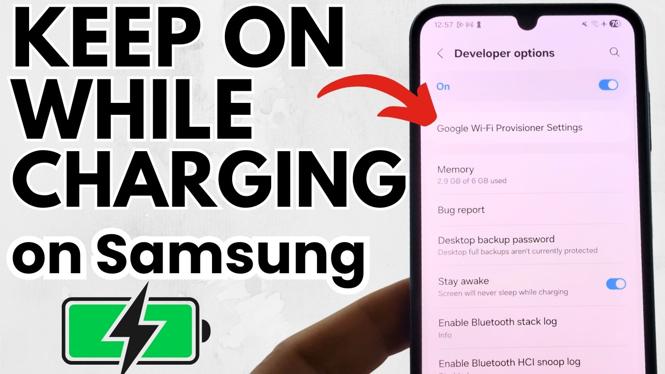
- Choose ‘Never’: Depending on your device version, you might see an option for ‘Stay awake while charging.’ Enable this option to prevent your screen from dimming.
- Test It Out:: Plug in your phone and check if the screen remains active. You should now have a persistent display while charging.
Conclusion
By following these simple steps, you’ll enhance the usability of your Samsung device while charging. This feature is especially handy for users who require continuous access to their screens. Enjoy a more functional experience by keeping your display awake and active whenever plugged in.
More Samsung Phone Tips & Tutorials:
 Subscribe Now! 🙂

Discover more from Gauging Gadgets
Subscribe to get the latest posts sent to your email.