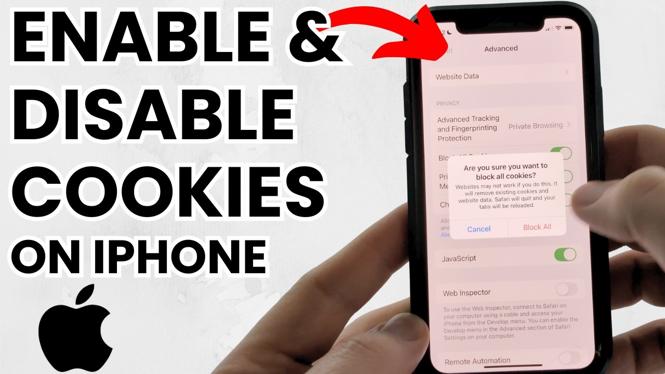
How to Enable & Disable Cookies on iPhone
In the digital age, understanding how to manage cookies on your devices is essential for maintaining your privacy and enhancing your browsing experience. Cookies are small files that websites store on your device to remember information about your visit. While they can improve your user experience by enabling functionalities such as keeping you logged in or remembering your preferences, they can also raise concerns about your privacy. Thus, knowing how to enable and disable cookies on your iPhone is crucial. This tutorial will guide you step-by-step on how to manage cookie settings in Safari and other browsers on your iPhone, helping you to take full control of your online experience.
Video Tutorial
Why You Might Be Looking for This Tutorial
Many users seek to understand how to enable or disable cookies for several reasons:
- Privacy Concerns: With growing concerns about online privacy, many individuals want to control how their data is collected and used by websites.
- Browsing Performance: In some cases, disabling cookies can lead to a better browsing speed, especially on older devices.
- Specific Usage Needs: Some users may want to allow cookies for certain sites (like online stores) while blocking them from others (like trackers).
- Management of Preferences: Understanding how to change cookie settings can help in managing saved preferences and login states effectively.
Steps to Enable & Disable Cookies on iPhone
1. Open Settings
Start by locating the Settings app on your iPhone. This is typically represented by a gear icon and can be found on the Home screen.
2. Scroll to Safari
In the Settings menu, scroll down and tap on Safari. This will open the settings specific to the Safari browser.
3. Manage Cookies Settings
Within Safari settings, look for the section labeled Privacy & Security. Here you will find options related to cookies:
- Block All Cookies: Toggle this option if you want to prevent all cookies from being stored on your device.
- Allow All Cookies: Toggle this option if you wish to permit cookies from all websites.
- Manage Website Data: This option lets you view and delete data stored by specific websites. It’s useful for cleaning up old data and managing your space.
4. Other Browsers
If you are using a browser other than Safari, like Chrome or Firefox, the steps may vary slightly. Generally, you can find cookie settings within the browser’s settings menu under Privacy or Security sections. Look for similar toggles to enable or disable cookies as needed.
5. Testing Your Settings
After adjusting your settings, it’s a good idea to test them. Visit a few websites to see if your changes are effective. If cookies are enabled, you should notice a saved login or other personalized settings. If they are disabled, the website may prompt you to log in again or ask for your preferences.
Conclusion
Knowing how to enable and disable cookies on your iPhone empowers you to tailor your browsing experience while keeping your privacy intact. Whether you’re looking to improve your online security or just manage your personal preferences, these steps are essential for every iPhone user. For a visual guide, refer to the video tutorial above.
More iPhone Tutorials:
 Subscribe Now! 🙂

Discover more from Gauging Gadgets
Subscribe to get the latest posts sent to your email.