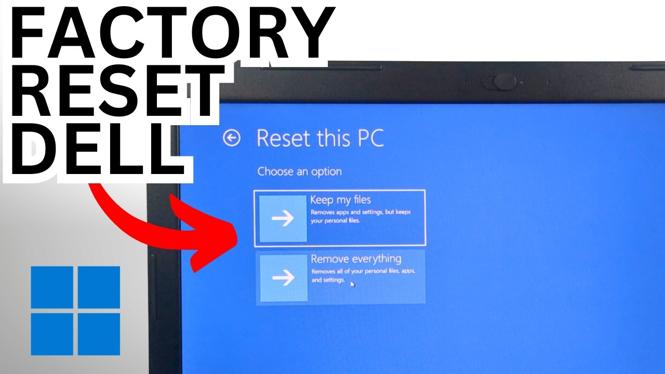
How to Factory Reset Dell PC Or Laptop Without Password
If you’ve found yourself locked out of your Dell PC or laptop, you might be considering a factory reset as a viable solution. Resetting your device can help restore it to its original state, erasing personal data and settings, which is particularly useful if you intend to sell or give away the machine. In this guide, we’ll walk you through the process of factory resetting your Dell PC or laptop without needing a password, focusing specifically on devices running Windows 11.
Why You Might Be Looking for This Tutorial
There are several reasons why you might want to factory reset your Dell device. Perhaps you’ve forgotten your password and can no longer access your files, or you simply want to start fresh without all the clutter that has built up over time. Maybe you’re preparing to sell your laptop and want to ensure all your personal information is completely wiped. Whatever your reason, this tutorial will provide you with the steps to perform a factory reset safely and efficiently.
Steps to Factory Reset Dell PC Or Laptop Without Password
- Back Up Important Data: Before you proceed with the factory reset, it’s critical to back up any important data if possible. Since you are locked out, you might not be able to access files directly.
- Power Off the Device: Ensure that your Dell PC or laptop is completely powered off.
- Access Recovery Mode: Turn on your device and immediately start pressing the F8 key repeatedly until the Advanced Boot Options menu appears. If this method does not work, you may need to use the F12 key to access the Boot Options and select the BIOS setup or Recovery.
- Select Repair Your Computer: Once in the recovery options, navigate to Troubleshoot, then select Reset this PC.
- Choose Reset Option: You will typically see two options: Keep my files or Remove everything. Since you want a complete factory reset, choose Remove everything.
- Follow On-Screen Instructions: Follow the instructions provided on the screen. This may include choosing whether to clean the drives fast or thoroughly. A thorough cleanse is recommended if you’re selling or giving away the device.
- Wait for the Process to Complete: The resetting process might take some time. Once the operation is complete, your Dell PC or laptop will restart and guide you through the initial setup.
Video Tutorial
By following these steps, you should be able to reset your Dell PC or laptop without needing a password. Remember to set up your device as new after the reset, and if you encounter any issues during the process, be sure to refer back to the video tutorial for additional guidance.
More Windows 11 Tips & Tutorials:
 Subscribe Now! 🙂

Discover more from Gauging Gadgets
Subscribe to get the latest posts sent to your email.