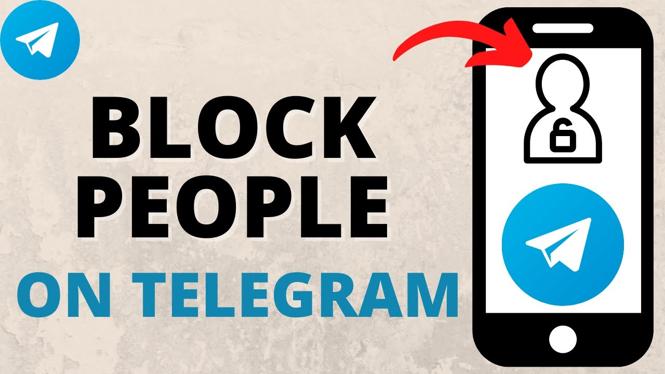
How to Block People on Telegram
In today’s digital age, online privacy and personal space are becoming increasingly vital. Telegram, a popular messaging app known for its emphasis on security and privacy, allows users to communicate freely while giving them control over their contact list. However, there might be instances when you need to block a person for various reasons, such as harassment, unwanted messages, or simply maintaining a clutter-free contact list. In this blog post, we will guide you through the process of blocking and unblocking individuals on Telegram, both on mobile and desktop versions, ensuring you can manage your Telegram experience effectively.
Video Tutorial
Why You Might Be Looking for This Tutorial
Many users may find themselves searching for how to block someone on Telegram due to several reasons:
- Safety Concerns: If someone is sending unwanted or hostile messages, blocking them can provide immediate relief.
- Protecting Your Privacy: Control who can contact you to keep your conversations private and safe.
- Managing Your Contacts: Sometimes, it’s simply about keeping your contact list organized and removing unwanted connections.
- Understanding App Features: Learning how to navigate the blocking feature helps in mastering the app and getting the most out of your Telegram experience.
Steps to Block Someone on Telegram
Blocking on Mobile App
- Open the Telegram app on your mobile device.
- Go to the chat with the person you want to block.
- Tap on the contact’s name at the top of the chat screen.
- Scroll down and select “Block User.”
- Confirm the action when prompted.
Blocking on Desktop
- Launch the Telegram desktop application.
- Navigate to the chat with the person you wish to block.
- Click on the contact’s name at the top of the chat window.
- Select “Block User” from the dropdown menu.
- Confirm that you want to block the user.
How to Unblock Someone on Telegram
Unblocking on Mobile App
- Open the Telegram app and tap on the hamburger menu (three lines) in the upper left corner.
- Select “Settings” and then go to “Privacy and Security.”
- Tap on “Blocked Users.”
- Select the user you want to unblock and tap on “Unblock.”
Unblocking on Desktop
- Open Telegram on your desktop.
- Click on the three horizontal lines in the top-left corner and select “Settings.”
- Go to “Privacy and Security.” Look for “Blocked Users.”
- Select the user you wish to unblock and click “Unblock.”
Conclusion
Knowing how to block and unblock people on Telegram is crucial for maintaining a safe and enjoyable messaging experience. Whether due to unwanted messages or just a need to manage who can contact you, following the above steps will allow you to take control of your Telegram interactions effectively. Don’t forget to check out the video tutorial for a visual guide on the process!
More WhatsApp Tips & Tutorials:
 Subscribe Now! 🙂

Discover more from Gauging Gadgets
Subscribe to get the latest posts sent to your email.