How to Install iOS 26: Step-by-Step Guide
Updating your iPhone to the latest iOS version is crucial for maintaining performance, security, and accessing new features. iOS 26 introduces exciting enhancements such as Liquid Glass, Call Screening, and Adaptive Power. This blog post will guide you through the easy steps to install iOS 26 directly on your iPhone without the need for iTunes or a computer.
Video Tutorial
Why You Might Be Looking for This Tutorial
As technology evolves, keeping your device updated ensures that you maximize its capabilities. If you’re encountering performance issues, seeking new features, or simply want the latest security updates, knowing how to install iOS 26 is essential. Many users prefer to bypass iTunes for a more straightforward installation process. This tutorial will help you navigate that process easily.
Steps to Install iOS 26 on Your iPhone
Step 1: Backup Your Data
Before performing an update, it’s a good practice to back up your data. You can back up your iPhone using iCloud or by using the backup feature in iTunes if you choose to.
Step 2: Check Your iPhone Compatibility
Ensure that your iPhone model is compatible with iOS 26. You can find a list of compatible models on Apple’s official website.
Step 3: Connect to Wi-Fi
Make sure your iPhone is connected to a stable Wi-Fi network. This will help prevent interruptions during the download and installation process.
Step 4: Open Settings
On your iPhone, open the Settings app. Scroll down and tap on “General.”
Step 5: Select Software Update
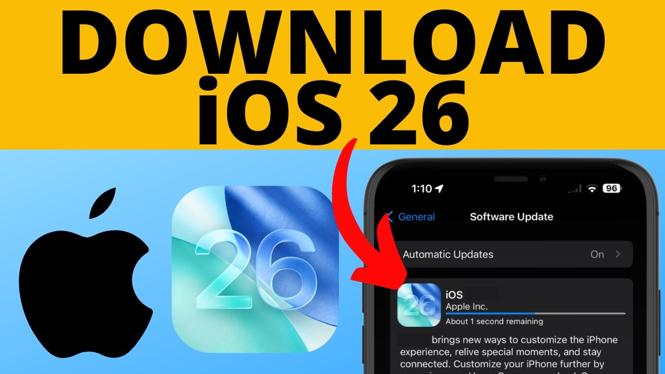
In the General menu, tap on “Software Update.” Your iPhone will check for available updates.
Step 6: Download and Install iOS 26
If iOS 26 is available, you will see an option to download and install it. Tap on “Download and Install.” Enter your passcode if prompted, and agree to the Terms and Conditions.
Step 7: Wait for the Installation to Complete
Your iPhone will start the update process. This may take some time, so ensure your battery is adequately charged or keep it plugged into a power source.
Step 8: Complete the Setup
Once the installation is complete, your iPhone will reboot. Follow any additional setup instructions that may appear on your screen to complete the update process.
Conclusion
Installing iOS 26 on your iPhone is a straightforward process that opens up a world of new features and improvements. By following these steps, you should be able to successfully update your device without the need for iTunes or a computer. If you have further questions or run into issues, feel free to leave a comment below.
More iPhone Tips & Tutorials:
 Subscribe Now! 🙂

Discover more from Gauging Gadgets
Subscribe to get the latest posts sent to your email.