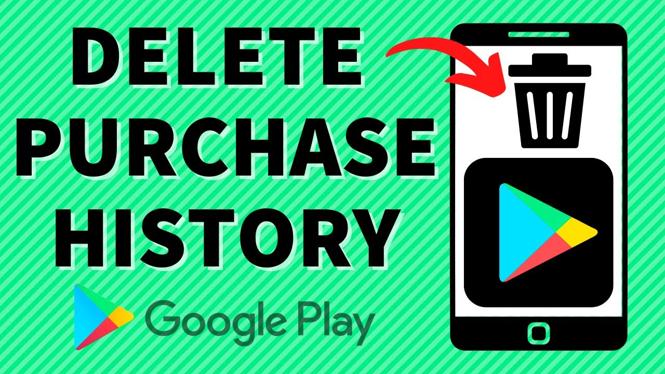
How to Delete Google Play Store Purchase History
If you’ve ever purchased apps, games, or other digital content from the Google Play Store, you may find that your purchase history starts to accumulate over time. This can be concerning if you prefer to keep your digital purchases private or if you simply want to declutter your account. In this blog post, we will walk you through the steps to delete your Google Play Store purchase history and manage what appears in your account. By the end, you will have a clearer understanding of how to keep your purchases more private.
Video Tutorial
Why You Might Be Looking for This Tutorial
There are several reasons why users search for a way to delete their Google Play Store purchase history. First, privacy concerns are at the forefront; users may not want others to see their purchases, especially if they share their devices with family or friends. Additionally, managing your purchase history can help you keep your account organized and prevent clutter from old transactions. By learning how to manage and hide your Google Play Store purchase history, you can regain control over your digital footprint.
Step-by-Step Guide to Deleting Google Play Store Purchase History
Step 1: Open the Google Play Store App
Begin by launching the Google Play Store app on your Android device. Make sure you are signed in to the Google account from which you want to delete the purchase history.
Step 2: Access Your Account
Tap on the profile icon located at the top right corner of the screen. This will take you to your account settings.
Step 3: Go to “Account” Section
From the menu that appears, select “Payments & subscriptions” and then choose “Budget & history.” Here, you will find your complete purchase history.
Step 4: Manage Your Purchases
In the purchase history section, you will see a list of all your purchases made with your Google account. Review the items listed and identify which ones you would like to hide. Unfortunately, while you can hide purchases from your library, you cannot fully delete them from your purchase history.
Step 5: Remove Items from Your Library
If there are apps or other items that you no longer wish to see in your library, you can remove them. Tap on the item you wish to remove, then select “Manage,” and finally, choose “Remove from My Library.” This action only removes the item from your library; it does not delete the purchase itself.
Step 6: Limit What Shows in Your Account
To further control your purchase visibility, consider adjusting your app permissions and settings. This step can include managing app-specific settings for privacy and visibility.
Conclusion
Managing your Google Play Store purchase history is an essential aspect of maintaining your privacy and keeping your account organized. While you may not be able to delete your purchase history outright, you can effectively hide items from your library and control what appears in your account. By following the steps outlined in this tutorial, you can take charge of your digital purchases and enjoy a cleaner, more private experience on the Google Play Store.
More Google Play Store Tips & Tutorials:
 Subscribe Now! 🙂

Discover more from Gauging Gadgets
Subscribe to get the latest posts sent to your email.