How to Temporarily Deactivate Your Instagram Account
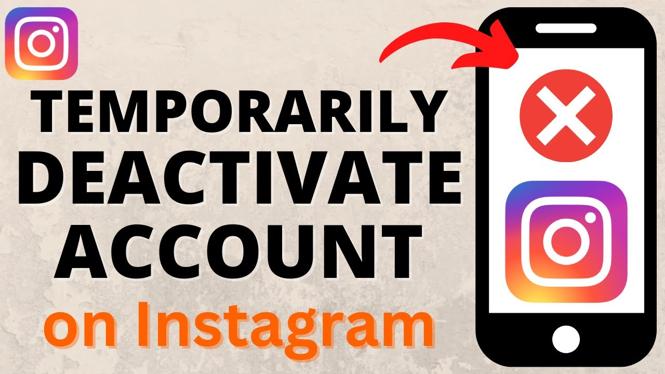
Are you looking to take a break from Instagram without losing your account or the data associated with it? Temporarily deactivating your Instagram account is a great option for those who want to step back from social media for a while. This guide provides you with easy-to-follow steps to hide your profile, photos, comments, and likes until you’re ready to return.
Video Tutorial
Why You Might Be Looking for This Tutorial
Taking a break from social media can be beneficial for your mental health and well-being. Whether you want to focus on personal projects, take a vacation, or simply disconnect for a while, deactivating your Instagram account is a practical solution. Many users may seek this option to ensure they don’t lose any of their valuable content while also stepping away from the pressures that often come with social media engagement. This tutorial will guide you through the deactivation process, making your account invisible to others while retaining all your data for when you decide to return.
Steps to Temporarily Deactivate Your Instagram Account
- Log into Instagram: Start by opening the Instagram app on your mobile device or visiting the Instagram website on your computer. Log in using your username and password.
- Go to Your Profile: Once logged in, navigate to your profile by clicking on your profile icon located at the bottom right corner of the app or top right on the website.
- Access Settings: Click on the three horizontal lines (hamburger icon) in the top right corner to open the menu. From there, select ‘Settings’ at the bottom of the menu.
- Select Privacy and Security: In the settings menu, click on ‘Privacy and Security’. Here, you will find various options related to your account’s privacy.
- Temporarily Disable Account: Scroll down to find the option labeled ‘Temporarily disable my account’. Click on it.
- Reason for Deactivation: Instagram will ask you to select a reason for deactivating your account. Choose the appropriate reason from the drop-down menu.
- Re-enter Password: After selecting a reason, you will need to re-enter your password to confirm your request.
- Deactivate Account: Finally, once you’ve re-entered your password, click on ‘Temporarily Disable Account’. Your account will now be hidden from others until you decide to reactivate it.
Conclusion
Temporarily deactivating your Instagram account is a straightforward process that allows you to take a break from the platform without losing any of your precious content. By following the steps outlined in this tutorial, you can easily pause your account and return whenever you feel ready. Remember, the digital world can be overwhelming, and it’s perfectly fine to take time for yourself.
More Instagram Tips & Tutorials:
 Subscribe Now! 🙂

Discover more from Gauging Gadgets
Subscribe to get the latest posts sent to your email.