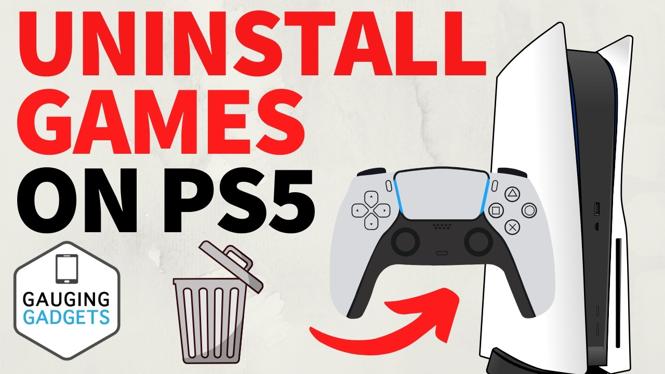
How to Uninstall Games on PS5
Are you running low on storage space on your PlayStation 5? If so, you may be looking for an efficient way to uninstall games and free up some room for new titles. In this comprehensive guide, we will walk you through the steps required to delete games and apps from your PS5 while ensuring your saved data remains intact. This way, you can enjoy a clutter-free gaming experience without the worry of losing progress in your favorite titles.
Video Tutorial
Why You Might Be Looking for This Tutorial
As the gaming library grows, the storage capacity of the PlayStation 5 can quickly become a concern. Whether you want to install the latest blockbuster hit or revisit an old favorite, having enough space is essential. Many gamers find themselves confused about how to manage their game library effectively, especially when it comes to uninstalling games without losing precious save data. This tutorial will help you gain control over your console’s storage and make room for new adventures seamlessly.
Steps to Uninstall Games on PS5
1. Navigate to your Game Library
Start by turning on your PS5 and signing in to your account. From the main menu, scroll down to the “Game Library” icon located on the home screen. This is where all your installed games and applications are displayed.
2. Select the Game You Want to Uninstall
In the Game Library, browse through your collection to find the game that you wish to uninstall. Use the directional buttons to highlight the desired game.
3. Access the Options Menu
Once you’ve highlighted the game, press the ‘Options’ button on your controller. This will bring up a menu with several options related to the game you selected.
4. Choose ‘Delete’
From the options menu, locate and select the ‘Delete’ option. This will prompt you to confirm your decision to uninstall the game. It’s important to note that this action will only remove the game itself, not your saved data.
5. Confirm the Uninstallation
After selecting ‘Delete,’ a confirmation message will appear asking if you are sure you want to proceed. Confirm your choice, and the game will be uninstalled from your PS5, freeing up the storage space you need.
6. Manage Your Storage
If you want to see how much space you’ve freed up or check your remaining storage, go back to the main settings. Navigate to ‘Settings’ > ‘Storage’ to view a detailed breakdown of your console’s storage, including installed games, saved data, and other applications.
Conclusion
Uninstalling games on your PS5 is a straightforward process that can help you manage your console’s storage effectively. By following the steps laid out in this tutorial, you can easily make space for new games while keeping your saved data safe and sound. So, go ahead, clean up your game library, and get ready for your next gaming adventure!
More PS5 Tips & Tutorials:
 Subscribe Now! 🙂

Discover more from Gauging Gadgets
Subscribe to get the latest posts sent to your email.