How to Screenshot on Samsung Galaxy Phone
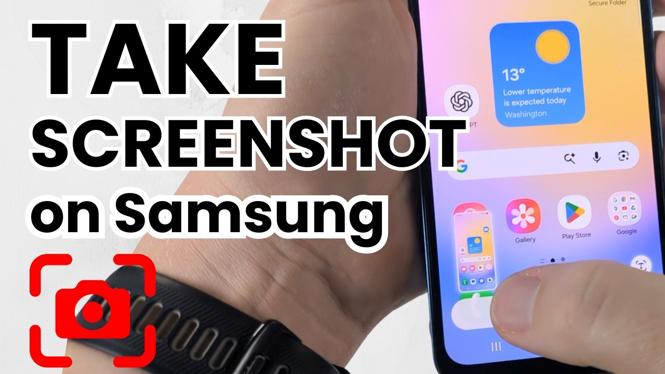
Taking screenshots on your Samsung Galaxy phone is an essential skill for anyone looking to capture important information, share content, or preserve memories. Whether you want to save a funny meme, a confirmation message, or any other on-screen content, knowing how to screenshot can be incredibly useful. In this blog post, we will walk you through the various methods available for taking screenshots on any Samsung device.
Video Tutorial
Why You Might Be Looking for This Tutorial
There are various reasons why you might want to learn how to take a screenshot on your Samsung Galaxy phone. Perhaps you’re a student wanting to capture a slide from a lecture, a professional needing to save an important email or chat, or even just someone who wants to share a piece of entertainment with friends and family. With the ability to screenshot, you can quickly save and share information without the hassle of typing it out or searching for it later.
Step-by-Step Guide: How to Screenshot on Samsung Galaxy Phone
Method 1: Using Hardware Buttons
This is the most common method for taking a screenshot on a Samsung Galaxy phone:
- Position the screen you want to capture.
- Press the Power button and the Volume Down button simultaneously.
- Hold both buttons for about a second until you see a flash on the screen or hear a shutter sound.
- The screenshot will be saved in your Gallery app under the ‘Screenshots’ folder.
Method 2: Using Palm Swipe
Samsung devices also allow you to take screenshots using a palm swipe gesture:
- Make sure the palm swipe feature is enabled by going to Settings > Advanced Features > Motions and gestures.
- To take a screenshot, swipe the edge of your hand across the screen from one side to the other.
- Just like the hardware button method, the screenshot will be saved in the Gallery app.
Method 3: Using the S Pen (For Note Series Users)
If you are using a Samsung Galaxy Note series phone, you have access to additional tools:
- Remove the S Pen from its slot to open the Air Command menu.
- Select the Screen Write option.
- Your screen will be captured, and you can draw or write on it before saving.
- Tap on Save to store your screenshot.
Conclusion
Learning how to take a screenshot on your Samsung Galaxy phone can greatly enhance your user experience. Whether you’re saving vital information or simply sharing a fun moment, you now have multiple methods at your disposal. Try out each method and find which one works best for you. If you have any questions or need further assistance, don’t hesitate to ask in the comments!
More Samsung Phone Tips & Tutorials:
 Subscribe Now! 🙂

Discover more from Gauging Gadgets
Subscribe to get the latest posts sent to your email.