How to Install & Use Gemini on iPhone
Are you looking for a way to enhance your productivity and creativity right from your iPhone? With the official Google Gemini app, you can chat with an AI to get assistance with writing, brainstorming ideas, answering questions, and much more. This guide will walk you through the simple steps to install and use the Gemini app on your iOS device, ensuring you can make the most of this powerful tool.
Video Tutorial
Why You Might Be Looking for This Tutorial
The Gemini app offers an innovative way to interact with AI, making it easier than ever to find answers, gather ideas, or even draft content. Whether you’re a student, a professional writer, or simply someone who enjoys exploring new technologies, learning how to install and use Gemini can drastically streamline your workflow. With just a few simple steps, you can access this cutting-edge tool and have it ready at your fingertips whenever you need assistance.
Steps to Install and Use Gemini on iPhone
1. Download the Gemini App
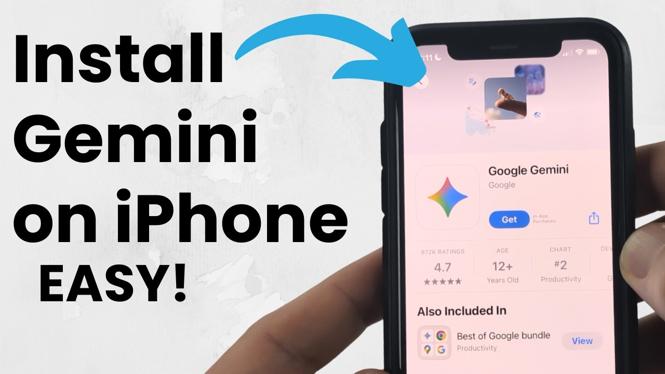
The first step to getting started with Gemini is to download the app from the App Store. Open the App Store on your iPhone and search for “Google Gemini.” Once you find it, tap on the download button to begin the installation. The app is free, making it easy for everyone to access.
2. Sign In or Create an Account
After the app has successfully downloaded, open it. You will be prompted to sign in with your Google account. If you do not have an account, you can easily create one by following the on-screen instructions. Having an account will allow you to save your preferences and chat history.
3. Familiarize Yourself with the Interface
Once you are logged in, take a moment to explore the app’s interface. You’ll notice how user-friendly it is. The main chat section allows you to start conversations easily. Look around for settings where you can adjust notifications and preferences to customize your experience.
4. Start Chatting with the AI
Now comes the fun part – chatting with Gemini! You can ask questions, request ideas, or seek writing assistance. Type your query in the text box and hit send. Gemini will generate responses to help you with your needs. Take advantage of this interactive feature to explore various tasks.
5. Utilize Gemini for Various Needs
You might find that Gemini can aid in numerous areas, such as writing essays, generating creative content, or providing quick answers to your questions. Experiment with different types of inquiries to discover all the potential uses of the app.
Conclusion
Installing and using Gemini on your iPhone is an excellent way to leverage AI technology for your daily tasks. With its easy installation process and user-friendly interface, Gemini can quickly become your go-to app for creative assistance and more. Follow the steps outlined in this guide, and unlock a world of possibilities right from your mobile device.
More iPhone Tutorials:
 Subscribe Now! 🙂

Discover more from Gauging Gadgets
Subscribe to get the latest posts sent to your email.