How to Fix Xbox One Resolution Stuck at 640 x 480
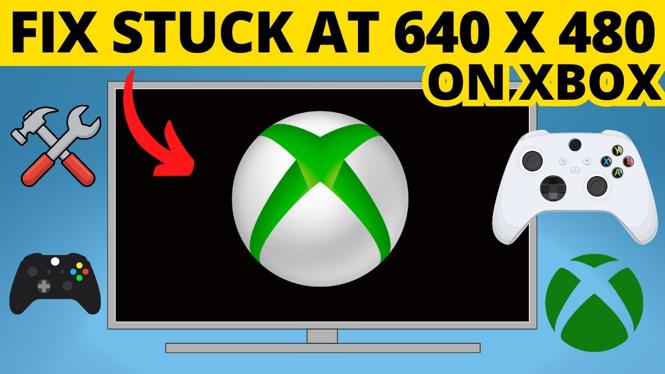
If you’re experiencing the frustrating issue of your Xbox One’s resolution being stuck at 640 x 480, you’re not alone. Many gamers encounter this problem, which can severely impact the gaming experience. The good news is that it’s usually an easily fixable issue. In this blog post, we’ll walk you through the steps to adjust your Xbox display settings, reset your video output, and restore your console to full HD or 4K resolution. Say goodbye to small screens and hello to immersive gameplay.
Video Tutorial
Why You Might Be Looking for This Tutorial
There are various reasons why your Xbox One might default to a low resolution. This could be due to a recent update, hardware problems, or incorrect settings that have been inadvertently changed. Players often find the low resolution especially bothersome, as it can make games appear stretched, grainy, and ultimately ruin the visual experience. Whether you’re playing demanding titles on an Xbox One, Series X, or Series S, restoring the proper resolution is crucial for an enjoyable gaming experience.
Steps to Fix Xbox One Resolution Stuck at 640 x 480
Step 1: Check Your Display Settings
Start by ensuring your display settings are correctly configured. To do this:
- Press the Xbox button to open the guide.
- Navigate to “Profile & system” and select “Settings.”
- Choose “General,” then “TV & display options.”
- Check the resolution setting and ensure it’s set to the highest your TV supports.
Step 2: Reset Video Output
If the settings appear correct but you’re still stuck at a low resolution, reset your video output:
- Turn off your Xbox One by holding the power button for 10 seconds.
- Once it’s off, hold the power button and the eject button simultaneously until you hear a second beep.
- Release the buttons, and your Xbox will start in low-resolution mode, allowing you to adjust settings again.
- Go back to “TV & display options” and select the correct resolution.
Step 3: Use a Different HDMI Port and Cable
If you still have issues after resetting the video output, try using a different HDMI cable or port:
- Unplug your HDMI cable from the Xbox One and the TV.
- Examine the HDMI cable for damage, and consider trying a different one if available.
- Connect the cable to a different HDMI port on your TV.
- Once connected, power on your Xbox One and check for resolution options.
Step 4: Update Your Xbox
Ensuring that your console is updated can also resolve resolution issues:
- In the “Settings” menu, navigate to “System.”
- Select “Updates” to check if any updates are available.
- If updates are found, download and install them, then restart your console.
Conclusion
The frustrating experience of having your Xbox One resolution stuck at 640 x 480 doesn’t have to ruin your gaming sessions. By following the steps outlined above, you can restore your display settings to their proper resolution, allowing you to enjoy your games as they were meant to be experienced. Don’t forget to check the accompanying video tutorial for a more visual guide on tackling this issue!
More Xbox Series X Tips & Tutorials:
 Subscribe Now! 🙂

Discover more from Gauging Gadgets
Subscribe to get the latest posts sent to your email.