How to Fix iPhone Not Ringing For Incoming Calls
If you’ve found yourself missing important calls because your iPhone isn’t ringing, you’re not alone. Many users encounter this frustrating issue, and it can stem from various sources. Whether you’ve accidentally muted your device or there’s a hidden setting that’s causing your iPhone to remain silent, this guide is designed to help you troubleshoot the problem and restore your device’s ringing functionality.
Video Tutorial
Why You Might Be Looking for This Tutorial
When an iPhone doesn’t ring for incoming calls, it can cause anxiety and missed opportunities. Here are a few reasons why you might be seeking a solution:
- Missed Calls: Essential calls from family, friends, or work may be missed if your phone isn’t ringing.
- Silent Mode: You might find that your phone is just on silent, which is an easy fix.
- Settings Issue: Do Not Disturb or Focus features may inadvertently be activated, silencing your calls.
- Technical Glitches: Sometimes, software bugs can cause unexpected behavior in your phone.
Steps to Fix Your iPhone Not Ringing
Follow these steps to troubleshoot and resolve the issue of your iPhone not ringing:
1. Check Ringer Volume
Ensure that your iPhone’s ringer volume is turned up. You can do this using the volume buttons on the side of your device. If you see the ringer icon with a bell, it indicates that sound is activated.
2. Turn Off Silent Mode
Check the Silent/Ring switch on the side of your iPhone. If you see orange, this means the phone is on silent mode. Flip the switch towards the screen to turn the ring mode on.
3. Disable Do Not Disturb/Focus Mode
Check if Do Not Disturb or Focus mode is enabled. You can find this in your settings by going to Settings > Focus > Do Not Disturb. If it’s activated, make sure to disable it or adjust the settings.
4. Check for Settings Issues
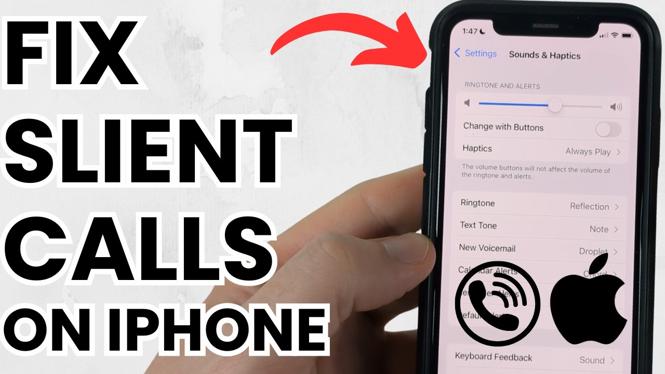
Go to Settings > Sounds & Haptics and ensure that the “Ringer and Alerts” volume is turned up. You may also want to toggle the “Change with Buttons” option on to ensure physical buttons control the ringer volume.
5. Restart Your iPhone
Simply restarting your device can often solve minor software glitches. To restart, hold down the power button and swipe to power off. Wait a moment, then turn it back on.
6. Update iOS
Outdated software can lead to functionality issues. Navigate to Settings > General > Software Update to check if any updates are available and install them if necessary.
7. Reset All Settings
If none of the above steps work, you might need to reset all settings. Go to Settings > General > Transfer or Reset iPhone > Reset > Reset All Settings. This will reset system settings without affecting your data.
By following these steps, you should be able to resolve the issue of your iPhone not ringing for incoming calls. Don’t let missed calls disrupt your communication; take action now to ensure your device is functioning properly.
More iPhone Tutorials:
 Subscribe Now! 🙂

Discover more from Gauging Gadgets
Subscribe to get the latest posts sent to your email.