How to Find Clipboard on Android Phone
In today’s fast-paced digital world, managing information efficiently is essential. Your Android device’s clipboard is a vital tool that helps you copy, store, and paste text seamlessly. If you’re seeking to unlock the potential of your clipboard on an Android phone, you’ve come to the right place. This tutorial will guide you through the process of accessing and viewing your clipboard, allowing you to maximize your copy and paste functionality.
Video Tutorial
Why You Might Be Looking for This Tutorial
Many users are unaware of how to access their clipboard or may find it challenging to see their copy and paste history. With applications ranging from note-taking to messaging, effectively utilizing the clipboard can enhance productivity and ease of use. Whether you’re a student, professional, or just someone who frequently shares information, knowing how to find and manage your clipboard can save you time and effort. Additionally, some users might want to retrieve lost text or simply explore their device’s features more thoroughly.
Steps to Find Clipboard on Your Android Phone
Step 1: Open Your Keyboard
The first step to accessing your clipboard is to open any app that allows text input. This could be a messaging app, email, or notes application. Tap on the text field to bring up the keyboard.
Step 2: Access the Gboard Features
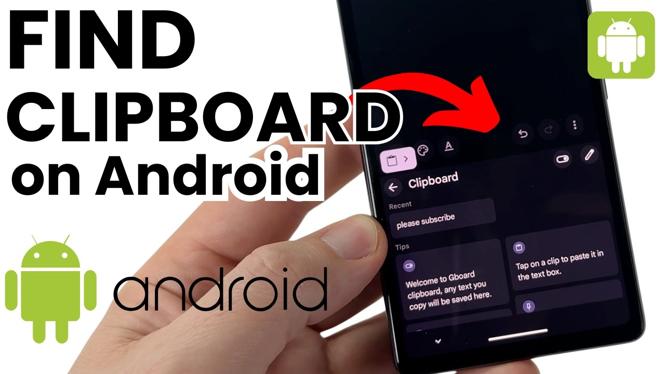
If you are using the Gboard, look for the clipboard icon. Depending on your settings, it may be located in the top toolbar or by tapping the three dots on the keyboard’s toolbar.
Step 3: View Clipboard History
Once you tap on the clipboard icon, you will see your copy and paste history. This allows you to view previously copied items. You can copy any item again by simply tapping on it.
Step 4: Enable Clipboard Manager (if necessary)
If you do not see the clipboard option, you may need to enable it in your Gboard settings. Go to Settings > System > Languages & Input > Virtual Keyboard > Gboard > Clipboard and toggle on the clipboard feature.
Step 5: Use Your Clipboard Effectively
Now that you know how to access your clipboard, you can easily manage your copied text. Remember that clipboard data may not be permanent, so make sure to paste important information where needed.
Conclusion
Accessing and managing your clipboard on an Android phone is straightforward when you know how to do it. By utilizing this feature, you can streamline your workflow and improve your overall productivity. If you have any further questions or need clarification on the steps provided, feel free to leave a comment below.
More Android Tips & Tutorials:
 Subscribe Now! 🙂

Discover more from Gauging Gadgets
Subscribe to get the latest posts sent to your email.