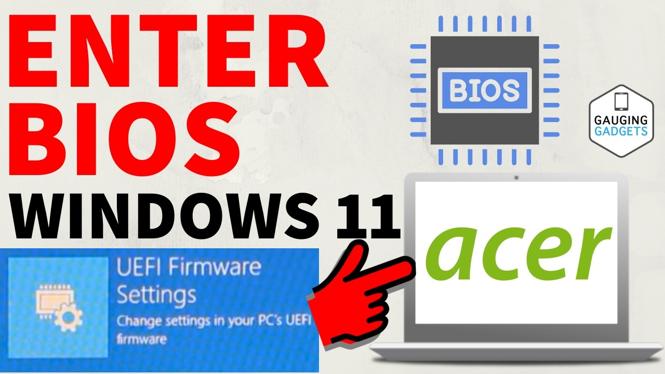
How to Enter BIOS on Acer PC or Laptop in Windows 11
Accessing the BIOS on your Acer PC or laptop running Windows 11 is a straightforward process that can unlock numerous customization options for your device. Whether you are looking to adjust hardware settings, update the boot order, enable virtualization, or troubleshoot potential system issues, knowing how to enter the BIOS is a crucial skill for any PC user. This guide will provide you with detailed steps to access the BIOS on various Acer models, including Aspire, Nitro, Swift, and Predator.
Video Tutorial
Why You Might Be Looking for This Tutorial
There are several reasons you may want to access the BIOS on your Acer machine. First, many users need to change the boot order to install a new operating system or boot from a USB drive. Others may want to enable virtualization technology for running virtual machines. Additionally, accessing the BIOS allows for troubleshooting hardware issues and optimizing system performance. Understanding these functions can enhance your overall computing experience.
Steps to Enter BIOS on Acer PC or Laptop
Method 1: Using the Startup Key
- Start by completely shutting down your Acer PC or laptop.
- Once the device is off, turn it back on. Immediately press the F2 key repeatedly until the BIOS menu appears. If F2 does not work, try using the DEL key instead.
- Navigate through the BIOS menu using the arrow keys on your keyboard. Here, you can make changes as needed.
- After making your adjustments, make sure to save your changes before exiting. This is usually done by pressing F10 and confirming the prompt.
Method 2: Using Windows 11 Advanced Startup Options
- Click on the Start button, then select the Settings gear icon.
- Go to System and select Recovery.
- Under the Advanced startup section, click Restart now. This will reboot your computer and take you to the Advanced Startup Options menu.
- From there, select Troubleshoot, then Advanced options, and finally choose UEFI Firmware Settings.
- Click Restart to access the BIOS setup utility.
Conclusion
Entering the BIOS on your Acer PC or laptop in Windows 11 is a valuable skill that opens up a world of customizing and troubleshooting options. Whether you’re changing the boot order or adjusting hardware settings, following these simple steps will guide you through the process efficiently. With this knowledge at your disposal, you can better manage your Acer device and ensure it meets your performance needs.
More Windows 11 Tips & Tutorials:
 Subscribe Now! 🙂

Discover more from Gauging Gadgets
Subscribe to get the latest posts sent to your email.