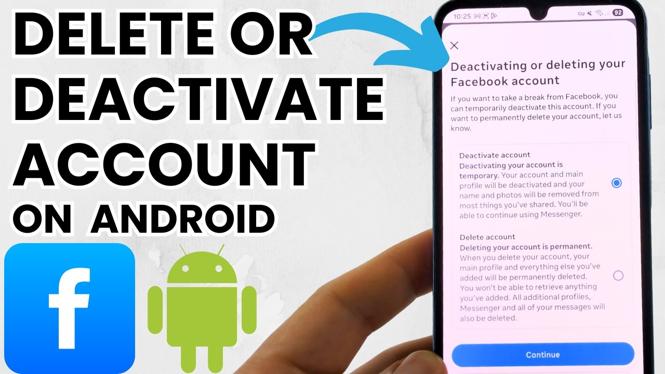
How to Deactivate or Delete Facebook Account on Android or Samsung
In today’s digital world, social media plays a significant role in our daily lives. However, there may come a time when you need to take a break or permanently remove your presence from platforms like Facebook. Whether you’re seeking to reduce distractions, protect your privacy, or simply step away from the constant buzz of notifications, knowing how to deactivate or delete your Facebook account on your Android or Samsung device is essential. This guide will walk you through the straightforward steps to manage your Facebook account effectively.
Video Tutorial
Why You Might Be Looking for This Tutorial
There are various reasons why someone may wish to deactivate or delete their Facebook account. Perhaps you feel overwhelmed by social media and need a break, or you realize that Facebook is not meeting your needs anymore. Alternatively, you might be concerned about privacy issues and want to ensure your personal data is safeguarded. This tutorial will provide you with the knowledge and steps required to take action, all from the comfort of your Android or Samsung device.
Steps to Deactivate Your Facebook Account
- Open the Facebook app on your Android or Samsung device.
- Tap on the three horizontal lines (menu icon) located at the top right corner.
- Scroll down and select “Settings & Privacy,” then tap “Settings.”
- Under the “Your Information” section, select “Account Ownership and Control.”
- Tap on “Deactivation and Deletion.”
- Select “Deactivate Account” and then tap “Continue to Account Deactivation.”
- Follow the prompts and provide any necessary feedback before confirming your deactivation.
Steps to Permanently Delete Your Facebook Account
- Open the Facebook app on your Android or Samsung device.
- Tap on the three horizontal lines (menu icon) located at the top right corner.
- Scroll down and select “Settings & Privacy,” then tap “Settings.”
- Under the “Your Information” section, select “Account Ownership and Control.”
- Tap on “Deactivation and Deletion.”
- Select “Delete Account” and tap “Continue to Account Deletion.”
- Read the information provided about account deletion and click “Continue.”
- Follow the prompts to finalize the deletion of your account.
Conclusion
Knowing how to deactivate or delete your Facebook account on an Android or Samsung device allows you to control your online presence effectively. Whether you seek a temporary break or a permanent exit, following these steps will help you achieve your desired outcome without the need for a computer or additional apps. Remember, once your account is permanently deleted, you will lose all your data, so be sure about your decision before proceeding.
More Facebook Tips & Tutorials:
 Subscribe Now! 🙂

Discover more from Gauging Gadgets
Subscribe to get the latest posts sent to your email.