How to Deactivate Facebook Page on iPhone, Android, & Samsung
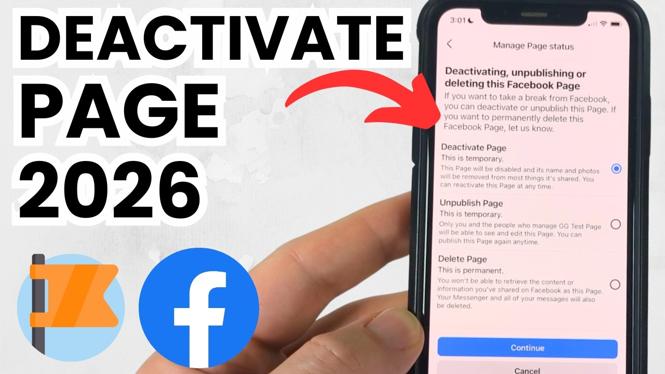
Temporarily deactivating your Facebook Page is a practical solution for those who need a break from managing their online presence. Whether you’re taking some time off for personal reasons or simply want to step back from social media, this guide will walk you through the steps to deactivate your Facebook Page on various devices, including iPhone, Android, and Samsung. By following these steps, you can ensure that your content and followers remain intact until you’re ready to return.
Video Tutorial
For a visual guide, check out the video tutorial below:
Why You Might Be Looking for This Tutorial
There are many reasons why you may want to deactivate your Facebook Page. Perhaps you are overwhelmed with the responsibilities of managing the page, or you wish to take a break from social media to focus on other aspects of your life. Additionally, if you find that your page is no longer relevant to your current goals or interests, temporarily deactivating it can be a smart choice. This tutorial offers clear, simple instructions designed to help you safely step away from your Facebook Page without the risk of losing valuable content and followers.
Steps to Deactivate Your Facebook Page
For iPhone Users:
- Open the Facebook app on your iPhone.
- Navigate to your Page by tapping on the menu icon and selecting your Page.
- Tap on the “Settings” option.
- Scroll down and select “Page Visibility.”
- Choose “Page published” and switch it to “Page unpublished.”
- Confirm your action by selecting “Save” and your page will be deactivated.
For Android Users:
- Launch the Facebook app on your Android device.
- Tap the three horizontal lines (menu) and go to your Page.
- Tap on “Settings” from the menu.
- Select “General” and then “Page Visibility.”
- Switch the toggle to “Page unpublished.”
- Tap “Save” to confirm your changes.
For Samsung Users:
- Open the Facebook app on your Samsung device.
- Access your Page through the menu icon.
- Tap “Settings” in the Page’s menu.
- Locate “General” settings and find “Page Visibility.”
- Change the setting from “Page published” to “Page unpublished.”
- Confirm by tapping on “Save.”
Conclusion
Deactivating your Facebook Page is an easy and effective way to take a break from your responsibilities while preserving your valuable content and audience. Whether you’re using an iPhone, Android, or Samsung device, the steps outlined in this tutorial will help you navigate the process with ease. When you’re ready to return, reactivating your Page is equally straightforward. Take control of your social media presence today!
More Facebook Tips & Tutorials:
 Subscribe Now! 🙂

Discover more from Gauging Gadgets
Subscribe to get the latest posts sent to your email.