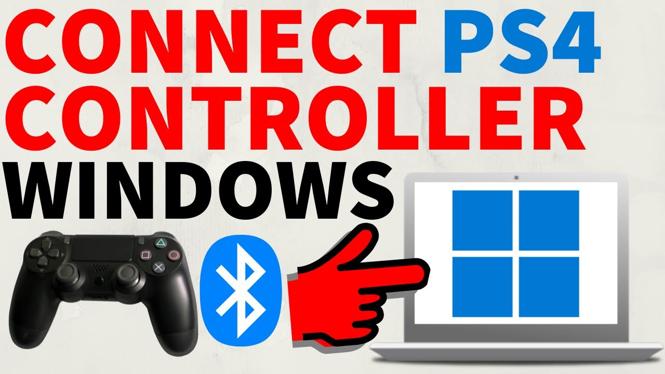
How to Connect PS4 Controller to Windows 11 PC & Laptop
Connecting your PS4 controller to a Windows 11 PC or laptop can significantly enhance your gaming experience. Whether you’re a seasoned gamer or just getting started, using a gamepad can provide a more comfortable and intuitive way to play. In this guide, we will walk you through the steps to connect your PS4 controller, making sure you’re ready to dive into your favorite PC games with ease.
Why You Might Be Looking for This Tutorial
Many gamers prefer using a controller for various reasons. Some find it more comfortable than a keyboard and mouse setup, especially for action or racing games. Additionally, certain games on PC are better suited for controller gameplay, allowing for a smoother and more enjoyable experience. If you’ve invested in a PS4 controller and want to leverage its capabilities on your Windows 11 device, this tutorial is essential for getting started.
Video Tutorial
Steps to Connect Your PS4 Controller to Windows 11
Step 1: Ensure Bluetooth is Enabled
Make sure your Windows 11 PC or laptop has Bluetooth capabilities. Go to Settings > Devices > Bluetooth & other devices and toggle Bluetooth on.
Step 2: Prepare Your PS4 Controller
Turn on your PS4 controller by pressing the PlayStation button. To enter pairing mode, simultaneously hold the ‘Share’ button and the ‘PlayStation’ button until the light bar starts flashing.
Step 3: Connect the Controller to Windows 11
In the Bluetooth & other devices settings on your PC, click on “Add Bluetooth or other device” and select Bluetooth. Your PC will search for devices. When you see “Wireless Controller” in the list, select it to connect. Once connected, the light bar on the controller will turn a solid color.
Step 4: Configure the Controller
For some games, you may need additional software to ensure full compatibility, such as Steam Big Picture mode or DS4Windows. Follow the software instructions for optimal setup.
Troubleshooting
If you experience issues connecting, try restarting your PC and the controller. Also, ensure that your Bluetooth drivers are up to date by checking Device Manager.
Conclusion
Connecting your PS4 controller to a Windows 11 PC or laptop opens up new possibilities for gaming. By following these straightforward steps, you’ll be able to take full advantage of your controller and enjoy a more immersive experience. Don’t forget to check out the video tutorial for a visual guide!
Discover more from Gauging Gadgets
Subscribe to get the latest posts sent to your email.